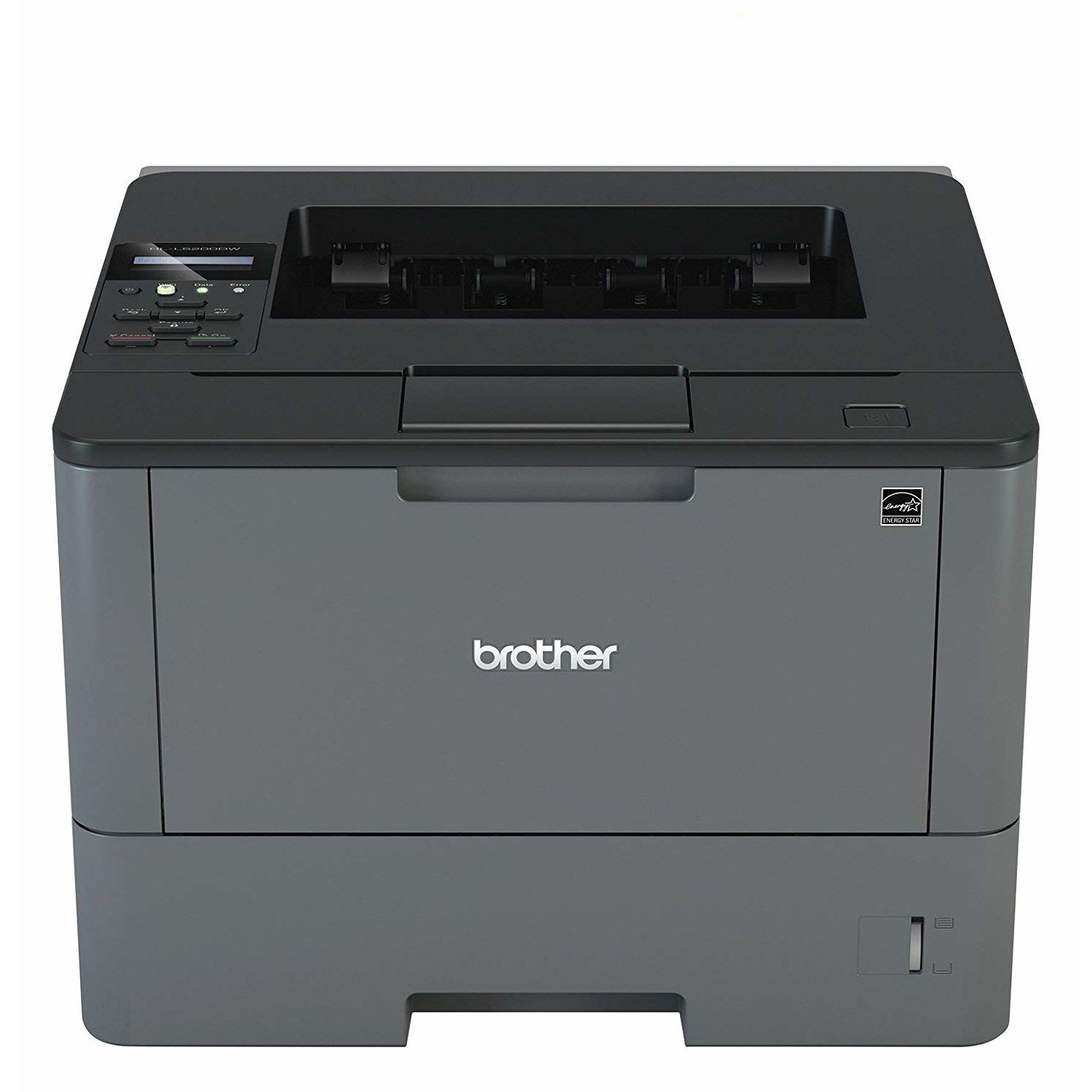
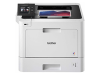

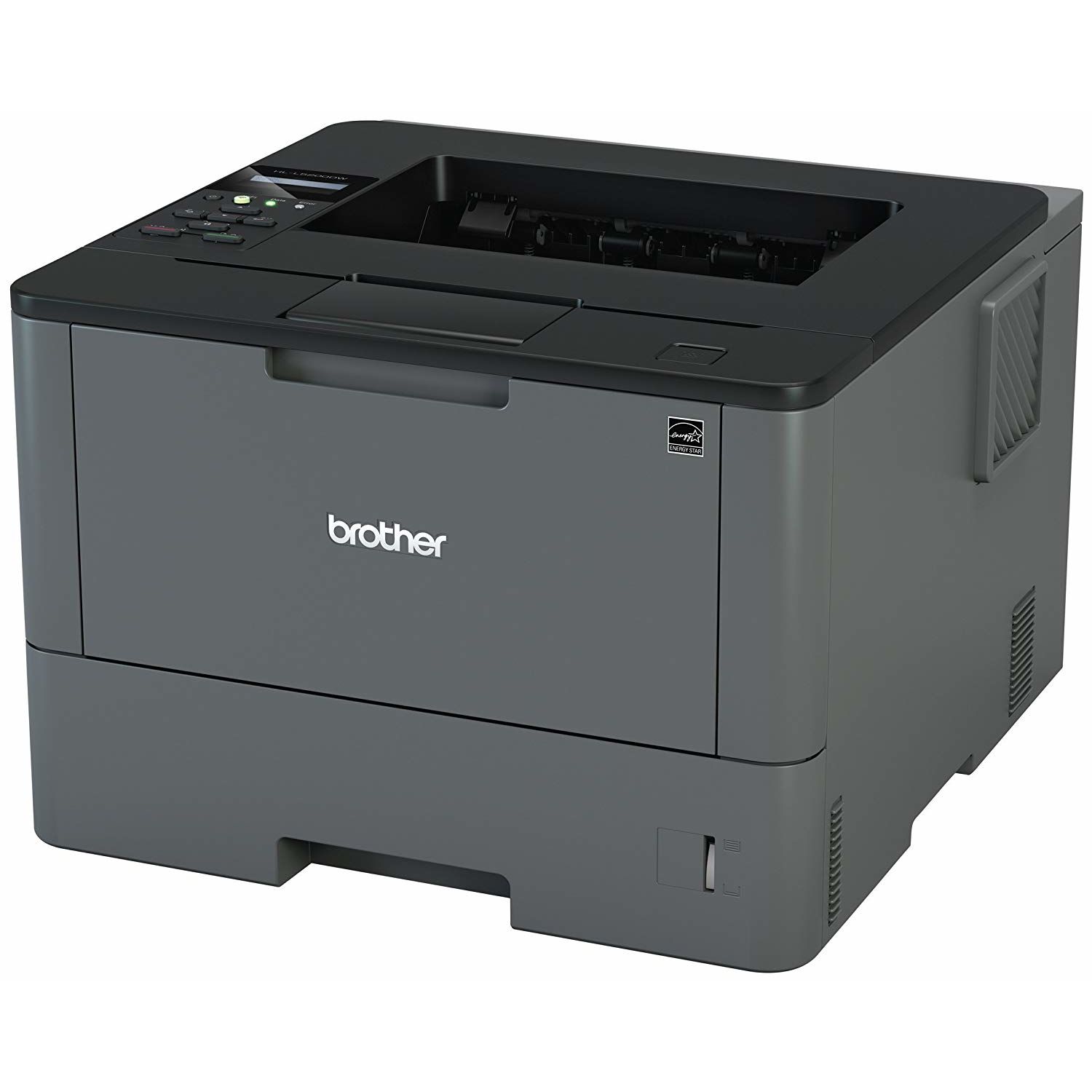
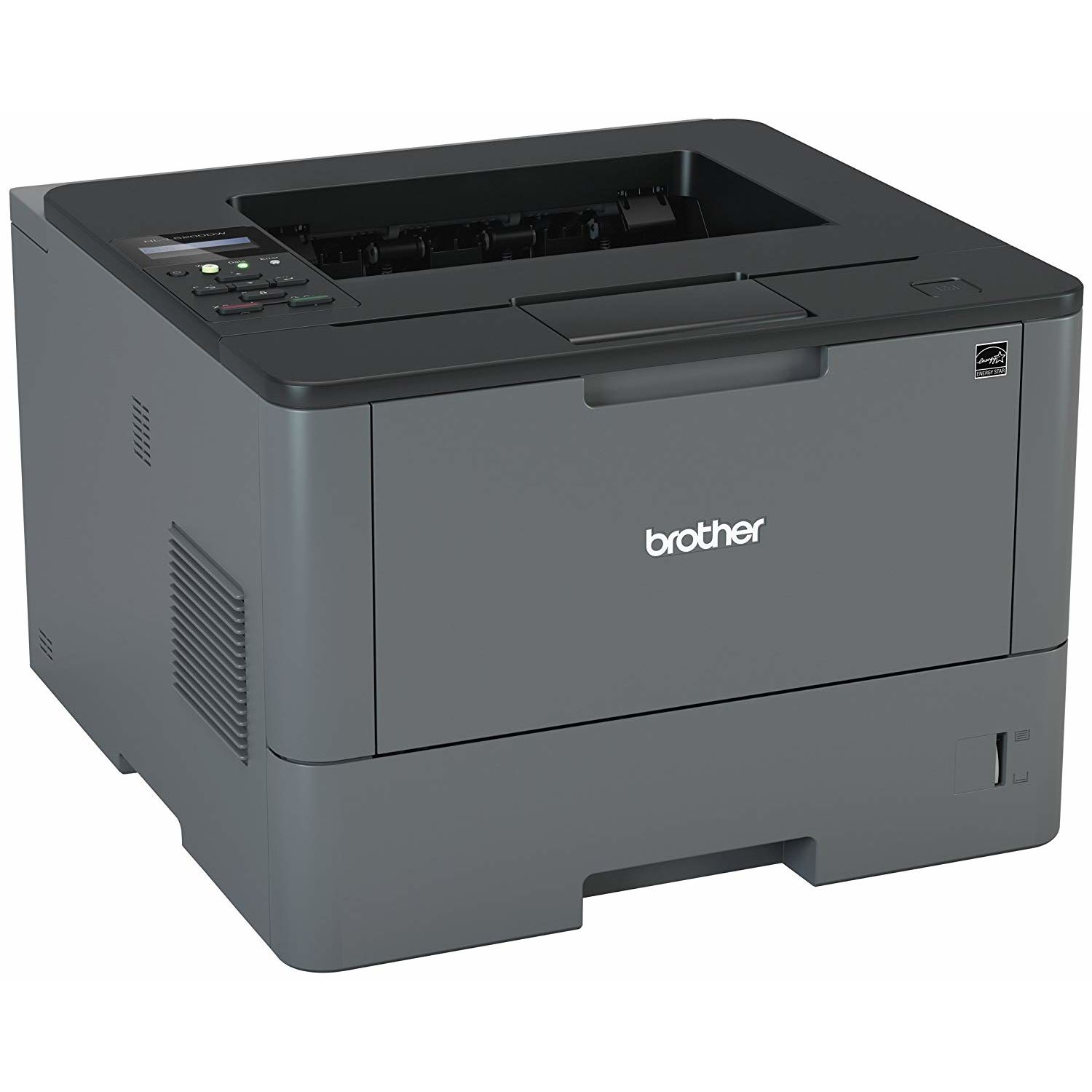
Brother Monochrome Laser Printer, HL-L5200DWT, Duplex Printing, Wireless Networking, Dual Paper Trays, Mobile Printing, Amazon Dash Replenishment Enabled
Write a review
21016 24922

Brother Monochrome Laser Printer, HL-L5200DWT, Duplex Printing, Wireless Networking, Dual Paper Trays, Mobile Printing, Amazon Dash Replenishment Enabled

Write a review
B01BHSLBLK
HLL5200DWT (2 Trays)
+
Add to wish list
Target is a general merchandise retailer with stores in all 50 states and the District...

City: US, New York

Delivery
Pickup at your own expense
Tomorrow from 09:00 to 20:00, Store location
Free
Payment options
Apple Pay Google Pay Mastercard Visa
Cash, bank card, credit/installment payments, cashless payment for legal entities
Warranty and returns
Exchange/return of products of proper quality within 14 days Official manufacturer's warranty: 12 months
Features
Connectivity Technology
USB, Ethernet, Wi-Fi
Item Dimensions
15.3 x 26.1 x 15.2 in
Item Weight
32.1 lbs
Operating System
  • Windows, Mac, Linux
Printer Output
Monochrome
Printer Technology
Laser
Style
HLL5200DWT (2 Trays)
Description
This fits your .
Make sure this fits by entering your model number. FAST, HIGH-QUALITY PRINTING: The HLL5200DWT monochrome laser printer delivers a fast print speed of up to 42ppm and sharp resolution LARGE PAPER CAPACITY, EXPANDABLE: Dual paper trays (250-sheet and 520-sheet capacity) allow busy workgroups to print with fewer interventions FLEXIBLE CONNECTIVITY: Easily share the printer on your wireless or Ethernet network and print with ease from a wide range of mobile devices(1) AMAZON DASH REPLENISHMENT ENABLED: Upon activation, Amazon Dash Replenishment measures the toner level and orders more from Amazon when it’s low. Operating Environment: Temperature : 50-90 degrees F. Power Consumption - Power Off/Deep Sleep/Sleep/Ready/Printing : 0.03W / 1.3W / 6.7W / 32W / 620W FOR USE WITH BROTHER GENUINE TONERS: TN820 Standard Yield Toner, TN850 High Yield Toner for cost efficient output
Reviews
3.5
Reviews: 20
5 stars
45%
4 stars
20%
3 stars
0%
2 stars
5%
1 star
30%
J. Colston
5
I use this dual paper printer for notarized documents that are 2/3 letter and 1/3 legal sized paper in mixed order. It works incredibly fast and prints well. My documents must be legible and free of marks on either the body or side of paper. This printer is a replacement for a Brother 5150 dual tray printer that gave me well over 500,000 pages. I print 2,500-7,500 pages per month and need a reliable printer. This printer was easy to set-up using my secure wifi network, and I use it on multiple PC and Apple computers as well as iPhones for printing. The dual tray comes with a 500 and 250 page trays. This is perfect for me given the ratio that I print, and the LED screen allows you to very easily assign paper size to the tray. I had it working in about 30 minutes. Brother toner replacements are excellent but expensive at around $100. I use aftermarkets that typically range around $20. HOWEVER, with after markets you have to accept that some of them will either fail or deliver bad quality. So always have a spare if you NEED to print. Brother cartridges have never failed me, but just not worth the money given the volume that I print. On my 5150, the drums would give me 50,000-70,000 prints, but I dont know about this model yet. I will update if there is any problem.
Cascade book lover
5
This printer is working perfectly for my job as a notary signing agent. I frequently print 250 pages at a time, combination of letter and legal, no problem. It prints very quickly and the print is clear. It was easy to set up the two different paper trays in the app so the printer pulls legal or letter size as needed automatically. I did read another review where someone mentioned the printer takes a long time to wake after being in sleep mode, but I havent found that to be the case with mine; it only takes a few seconds. I also saw a reviewer who said this printer doesnt actually print on legal paper. It DOES print on legal paper. You just have to extend the paper tray manually. When you do this, the tray does extend out the back of the printer a few inches, but thats okay with me because Id rather have it extend a few inches rather than have the whole printer be that much bigger and heavier (see photo). This is a pretty large printer for a home office. Ive shown a picture of it with my Canon Pixma 6200 inkjet below it so you can get an idea of the size. Setup was not bad. I initially had a little trouble getting it to connect to my home wifi, but once that was solved, everyone in the house has easily been able to print to it. It also comes with a cable so you can connect directly to your computer if you want. This is a great feature ... I bought a ScanSnap ix500 at the same time I bought this printer, and although the ScanSnap can also connect directly to the computer, it didnt come with a cable. Had to buy my own. I like having the option of printing directly in case the wifi is out. It also has an option to print from mobile devices, but I havent tried that yet.
Jerry Bull
5
Other than the rather dull appearance, this successor to our prior Brother duplex laser, which lasted us some 10 years, is fantastic! It is fast, even when printing duplex, has yet to jam, goes into a "deep sleep" when idle (but exits it immediately upon receiving a print job), and was easy to setup on our (secure) wifi network. We use the roughly 50-page flip-down paper input tray a lot for special forms or different stock; the bottom supply drawer holds a plentiful supply of our regular stock. It has the same drum/toner cartridge mechanism as our older device, so we know from experience that changing either or both, including with compatible brand (non-OEM) replacements is fast and easy. After a couple of months of everyday use, were totally pleased!
Marc J. Driftmeyer
5
Pros: GigE, Apple AirPrint via Bonjour, painless wireless configuration in both macOS and Linux, greatly improved font emulation options leading to high quality serif fonts by Adobe, Linotype, etc without any visible pixelation. Cons: None Tips: The print systems for Linux with CUPS 2.2-2.3 and macOS Mojave’s 10.4.4 making adding to an AirPort Extreme Bass Station painless. Go into the command panel and under Networking make sure in WiFi that AirPrint is enabled. Launch Airport Utility and select your base station under macOS choose Add WPS Printer. Press the WiFi button on the printer panel which initiates an address request. After a few requests the panel inside macOS will inform you the HL L5200DW is asking to connect. Add it Print System panel opens with a Bonjour option to select the printer so do so. It autoconfigs and make the unit AirPrint available inside your network. On Debian Linux with GNOME 3.30 select the printer option and it will be listed already configured
longshot7mm
5
I am a mobile notary public/ loan signing agent so I need a fast dependable printer that can print both letter and legal paper to print loan docs. Some time printing as many as 400 pages per loan. This printer is perfect for my profession and highly recommend for any small business.
Ski9
5
I love this printer (the Machine -- Brother calls its printers "Brother machine" in its manuals). I got it because I wanted a relatively inexpensive but reputable printer that can do double-sided printing even on non-standard sized paper, for a "project." I ended up using standard size and then trimming, but it is very nice to have this very versatile printer for long-term. And I really think it will be long-term because Brother lets you replace just about any part that will eventually wear out. I really like that because I like repairing my stuff instead of tossing. This is a very environmentally conscious company. Duplex (double-sided) printing worked very smoothly for me. And the print quality of the Machine is excellent. The default setting is 600 dpi which is excellent for text but for graphics you can "up" that to 1200 dpi. (So the person who complained in one of the reviews that the resolution looks about 600 dpi probably did not know where to look to change this default -- tho it is not hard to change). The Machine has a zillion settings and numerous ways to set them (on the printers control panel; via accessing the printers on-board software as HTML pages on your browser if the printer is on your network, and via print settings from your computers operating system (installed print driver). It is a nice printer for geeks -- lots of security (network) settings, and whatnot. Also, power-saving and toner-saving settings. Increasing print density, etc. The works. It has a very extensive electronic manual but I wish there was a bit more explanation about some things. Like I could not find out what the difference between "thick paper" and "thicker paper" is. I guess "thicker" means "if you have trouble loading it from the standard tray, use the multi-purpose tray because this means the paper is "thicker". (I was able to load 80 lb cover stock, = 120 gsm, thru the standard tray -- just need to open the back cover so it is a straight paper path. So this is "thick" paper but not "thicker.") Also, I had to research online about what the difference between "1200 dpi" and "HQ1200" is. Really, something like that ought to be in the manual because I think it is "Brother-specific," not industry-specific. And I like lots of explanation and advice in a manual, not just plain instruction. There is also a setting for "Graphics Quality" that is set to "text" or "graphics" = default. I suppose this is contrast? Would be really nice to have an explanation! My sole other complaint is that Windows has a much more user-friendly Brother driver, with easy access to many more settings, than the Mac OS software (at least for Mavericks which is what I have, and which was current when this printer was released). But I will forgive Brother because it also supports Linux, with nice instructions on its Support web site. Thanks, Brother. Despite my wish for a bit more explanation in the manual, and more equal Windows vs Mac support, I am super happy with the purchase. Much recommended.
Panfryd
5
Had a Brother HL-2040 for years. It had good print quality but could not print envelopes worth a darn -- no matter how carefully I positioned the envelope, it would come out with the printing on the envelope crooked and the envelope crinkled. When the drum needed replacing, I took that as an opportunity to choose a new printer instead of replacing the drum. In all fairness, the HL-2040 was a low-end printer... but this printer is also very cost effective in initial purchase, and the toner is reasonably priced. I did not want an all-in-one scanner-type printer (I already have great Fujitsu sheet-fed and Epson flatbed scanners), nor an inkjet (I already have a color inkjet - there are pros and cons with inkjets compared to lasers). I wanted a high-capable single-purpose laser printer. In surveying all reasonably priced printers, I decided on this one as having the capabilities I wanted with the best value. I kept my fingers crossed that it would do a good job printing envelopes. I was not disappointed, in fact my hopes were exceeded! It has a straight path available for envelopes and heavy stock, but that path requires extra clearance at the back. I tried the normal curved path first (where the printed media exits from the top) and the envelopes show no sign of crinkling! Great! And the multi-function paper feed works perfectly in feeding the envelopes straight (the printing has never skewed). And, you can load up to 10 envelopes at a time. The multi-function tray is hidden out of the way in the front... simply flips down and the extensions flip out, and just as easily stores back into its hidden position -- extremely well designed. This printer has nearly any programmable option you could ever want, accessed via front panel, IP address or computer app. It can connect via USB, WiFi, or Ethernet cable. I chose to connect via Ethernet cable connected to a powerline adapter which is in turn connected to our home network. I could have connected via WiFi, but I find that powerline connection is rock-solid and I had an extra connection available in our second floor office -- the AC1750 WiFi router is downstairs near the limit of its transmission and Ive not found WiFi extenders to work as well as powerline, which easily covers the whole house. If using USB, that would mean the host computer would have to be on with printer sharing enabled. Having the printer connected via wired Ethernet works perfectly... as long as the router and powerline are on (always are), you can print from anywhere on the network (even if the Internet is down). After completing a print job, the printer quickly goes into deep sleep, and awakes instantly when sent another print job. It consumes only 1.3 watts in deep sleep. The only negative Ive found is that this printer is very noisy in its initialization process when powering up, but after that, the actual printing is not as noisy.
Cubicleman
5
After doing research about wireless printing, I bought this specifically to be able to print wirelessly from iPhones and iPads. Setup was a snap. Ive been printing documents ever since and have never been disappointed.
ilanao
5
Bought this for a small office to replace an older model that started leaking toner. It is shared by 3 employees. Its really fast and has good quality print. The toner cartridges last us as least 2 months, but we replaced with generic that are working fine.
Product variations
Column filling
Sort by Price Sort by Availability Sort by CODE Sort by Style
12813
In stock
+
B01BHXEAVS
Style:
HLL5200DW
21016 24922
In stock
+
B01BHSLBLK
Style:
HLL5200DWT (2 Trays)
You may be interested
  • Bestsellers
  • Recently Viewed
 
Fast and high quality delivery

Our company makes delivery all over the country

Quality assurance and service

We offer only those goods, in which quality we are sure

Returns within 30 days

You have 30 days to test your purchase