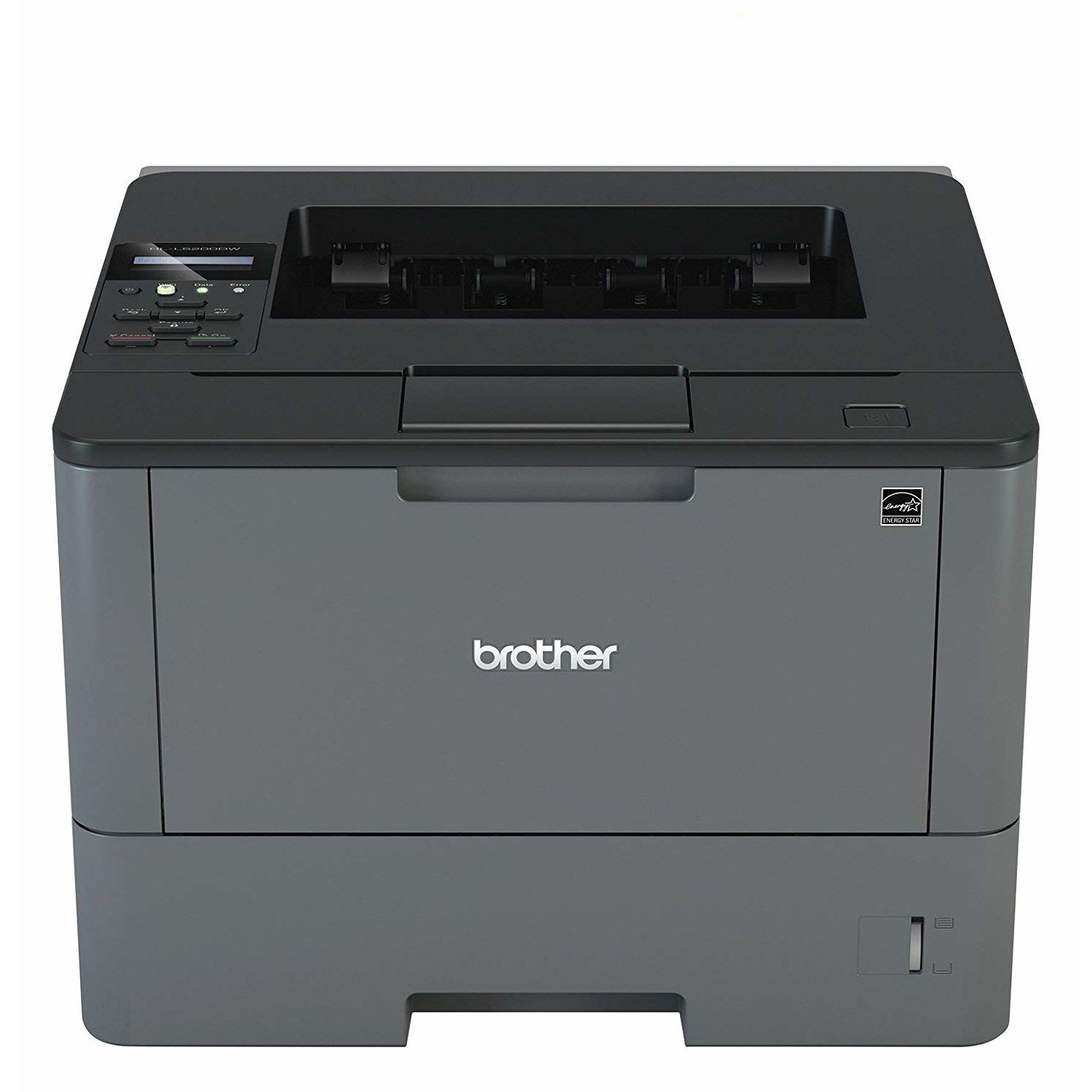
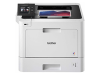

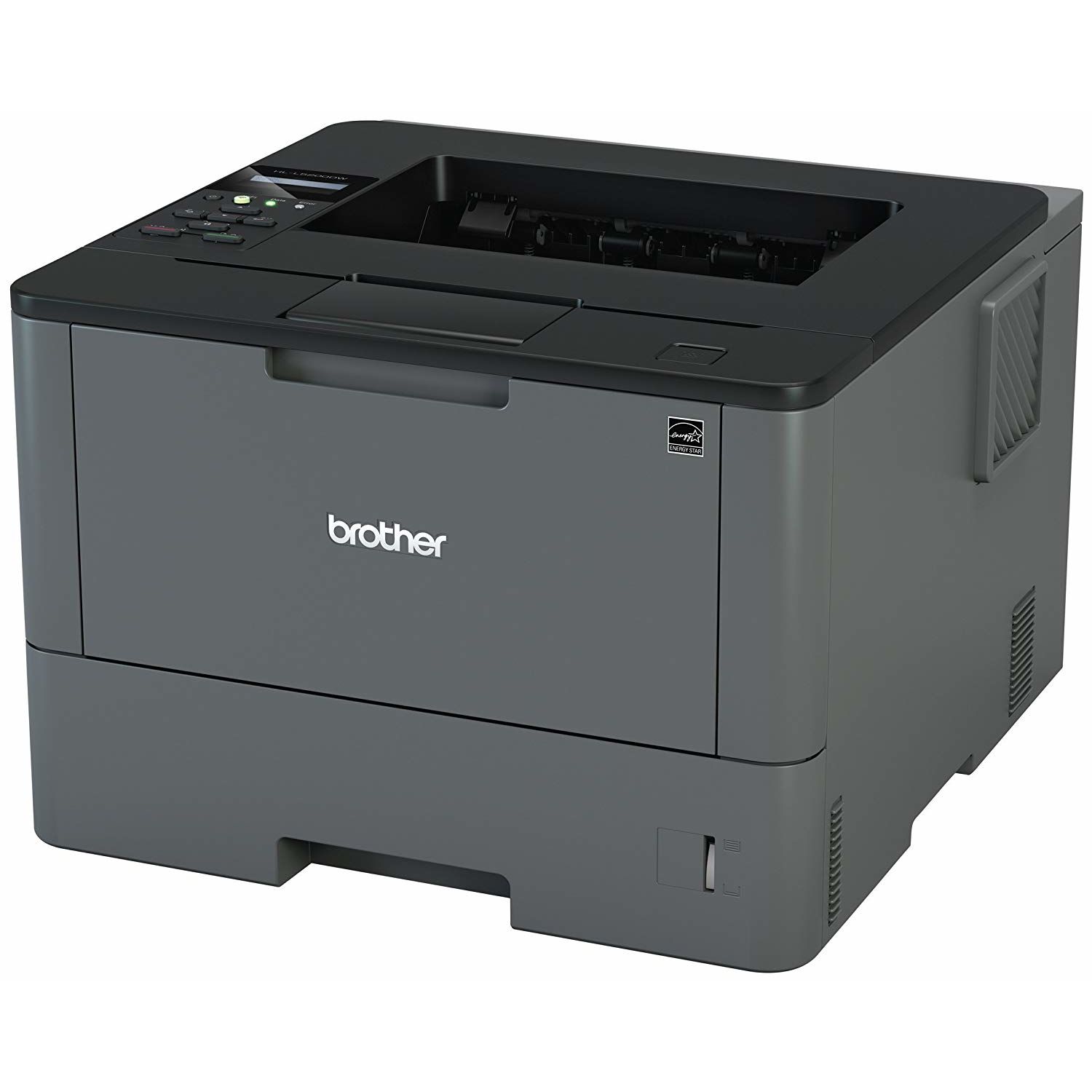
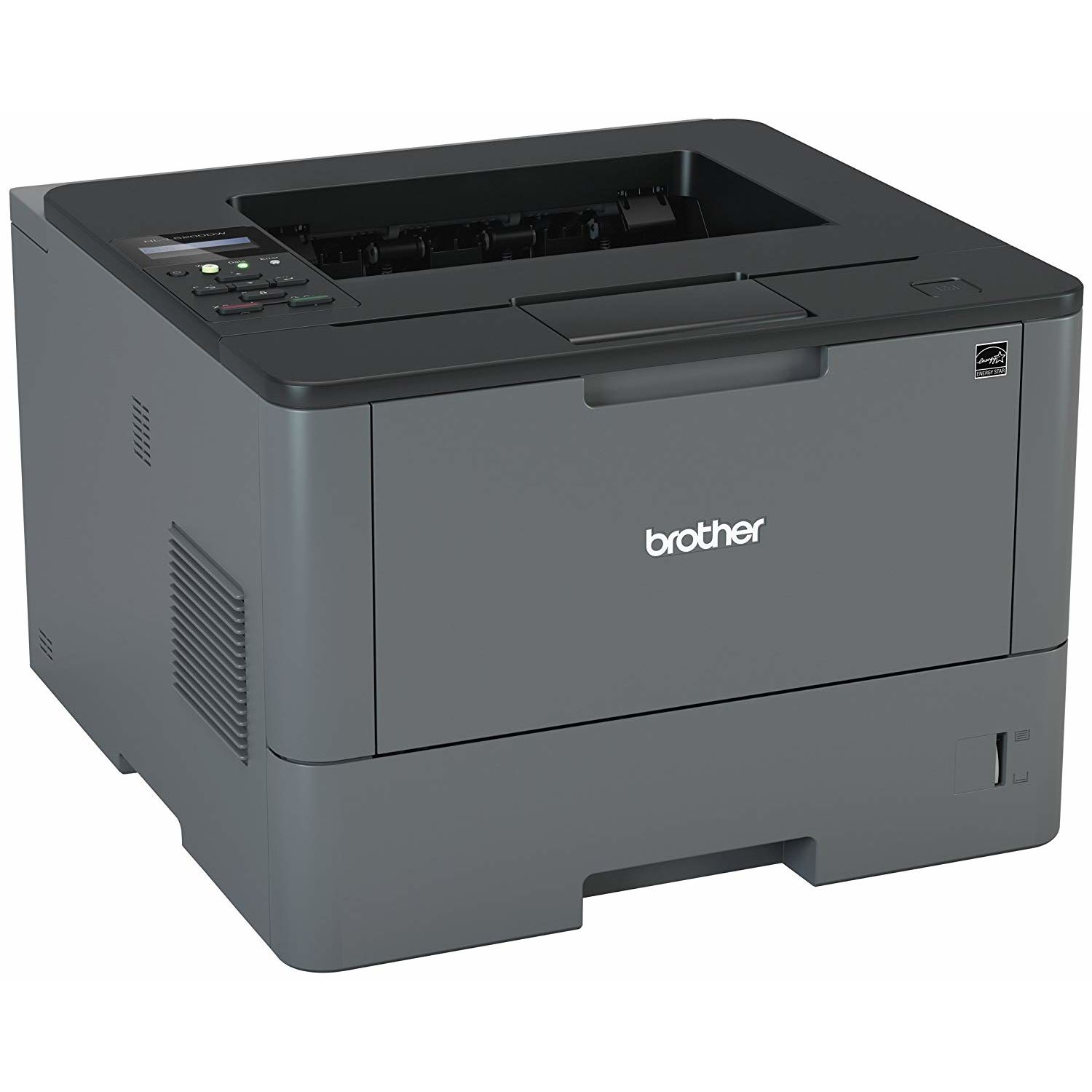
Brother Monochrome Laser Printer, HL-L5200DWT, Duplex Printing, Wireless Networking, Dual Paper Trays, Mobile Printing, Amazon Dash Replenishment Enabled
Write a review
21016 24922

Brother Monochrome Laser Printer, HL-L5200DWT, Duplex Printing, Wireless Networking, Dual Paper Trays, Mobile Printing, Amazon Dash Replenishment Enabled

Write a review
B01BHSLBLK
HLL5200DWT (2 Trays)
+
Add to wish list
Target is a general merchandise retailer with stores in all 50 states and the District...

City: US, New York

Delivery
Pickup at your own expense
Tomorrow from 09:00 to 20:00, Store location
Free
Payment options
Apple Pay Google Pay Mastercard Visa
Cash, bank card, credit/installment payments, cashless payment for legal entities
Warranty and returns
Exchange/return of products of proper quality within 14 days Official manufacturer's warranty: 12 months
Features
Connectivity Technology
USB, Ethernet, Wi-Fi
Item Dimensions
15.3 x 26.1 x 15.2 in
Item Weight
32.1 lbs
Operating System
  • Windows, Mac, Linux
Printer Output
Monochrome
Printer Technology
Laser
Style
HLL5200DWT (2 Trays)
Description
This fits your .
Make sure this fits by entering your model number. FAST, HIGH-QUALITY PRINTING: The HLL5200DWT monochrome laser printer delivers a fast print speed of up to 42ppm and sharp resolution LARGE PAPER CAPACITY, EXPANDABLE: Dual paper trays (250-sheet and 520-sheet capacity) allow busy workgroups to print with fewer interventions FLEXIBLE CONNECTIVITY: Easily share the printer on your wireless or Ethernet network and print with ease from a wide range of mobile devices(1) AMAZON DASH REPLENISHMENT ENABLED: Upon activation, Amazon Dash Replenishment measures the toner level and orders more from Amazon when it’s low. Operating Environment: Temperature : 50-90 degrees F. Power Consumption - Power Off/Deep Sleep/Sleep/Ready/Printing : 0.03W / 1.3W / 6.7W / 32W / 620W FOR USE WITH BROTHER GENUINE TONERS: TN820 Standard Yield Toner, TN850 High Yield Toner for cost efficient output
Reviews
3.5
Reviews: 20
5 stars
45%
4 stars
20%
3 stars
0%
2 stars
5%
1 star
30%
Waikiki
4
Its amazing, in 2016, there arent too many wireless LASER printers. Of the models available, the number one complaint is wireless connection issues. Great, the one thing you want it to do, it doesnt do well. Brother wireless laser printers are no different. This is one of their newer models, and it seems to be OK after 2 weeks of heavy use. Brother laser printers are generally rock-solid workhorses. This one seems no different. You can connect it via USB 2 (not 3 in 2016?) if you have wireless issues. The set-up is kinda straight forward, but I recommend ignoring the CD, and go to the Brother website and get the latest S/W, and Firmware Upgrade tool. Its all pretty easy, except the wireless set-up is a bit clunky. When it asks you for your wireless routers "Network Key" , and shows you where to find it on your router, its all nonsense. Just use your password and all is well. Yo Brother, maybe consider changing the set-up language so I could be finished in 3 min, rather that 15, because I had to Google what the heck my my Apple AirPort Extreme network key means with regard to Brother wireless printer set-up! One bloke said just use your password... BINGO!
L. Rubin
4
The good: very easy set-up, fast printing, instruction materials written in proper English. The bad: a bit noisy and the manual sheet feeder is made out of plastic thinner than I thought possible. The printer comes sturdily packed, and the inner wrapping has handles to make removal of the printer easy. Very well thought out. Out of the box, I just plugged the printer into my home network (I dont believe in WiFi), turned it on, and my computer found it, and it all just worked. Printing is fast, though a bit noisy. It has that mechanical sound of parts not made with very high precision. Overall this printer is doing exactly what I need it to do, namely print documents cleanly and reliably. I would buy this again.
Catherine J.
4
As a Notary Signing Agent I needed a good quality laser printer that would allow me to print both letter and legal size pages at the same time. After some deliberation I decided on this Brother dual tray laser printer. I liked the fact that I would be able to printer wirelessly from my Surface Pro 4. I also am able to print wirelessly from my phone with ease. This printer was easy to set up and start using. I was able to start printing documents within 20 minutes of taking it out of the box. I do suggest when installing the software for the first time on a computer, use a printer cable (it takes way less time than trying to do it wirelessly). Once you have all of the software and drivers installed you will be able to start printing wirelessly. This printer is so quick that almost as soon as I hit the print button the pages start spitting out. I havent timed it yet, but if Im sitting in my kitchen and print 5 pages, by the time I get to the printer they are already done and waiting for me (it takes about 20 seconds to make the trek) Now on for the downside. Im not sure why this happens, but I noticed that if I go a few days without printing anything, it will not print wirelessly when I do go to print something. (Ive had the same problem with my HP inkjet printer as well). But I find that if I print at least 1 document using printer cable I can go back to printing wirelessly with the next print job. The other minus (but not really) is that it is a little bigger than I thought it would be.
Dave in Georgia
4
July 2017 UPDATE- The printer has operated flawlessly! I love using AIRPRINT meaning I can printer from my IPAD which is connected to the internet. PROBLEM ISSUE discovered 3/21/17: I use the following with my IMAC running 10.10. MS office for MAC 2011. Adobe Reader DC 2015. Brother has a driver bug that will not allow you to print in duplex (2-sided pages) if you select the printer Icon in the "bar". You must choose FILE then PRINT or you can use COMMAND + P. Duplex does work OK when printing something in OUTLOOK. In Adobe Reader, you cant use their PRINT icon either and get duplex. You can work around that by selecting the PRINT icon then PRINTER to open the dialogue then YES then PRINT. Brother is aware of the bug but claims it in immaterail and wont likely fix it. This is a review on the set up process and other printer qualities as I just activated it today. I was impressed by the clarity of the instructions to set up and use this printer. Brother even set up additional manuals available on-line for things like using AirPrint with OS X and using Google Cloud. The one issue I has was that I was unable to install the January 2017 firmware update. TIP: READ the instructions....now READ again....did I mention R E A D? This will save you work!!!! I set this up in an IMAC (about 6 years old) and I choose to set the printer up wirelessly. Ditch the CD that comes with the unit. You dont need it. Just follow the instructions in the Quick Set up guide titled "Macintosh/Windows computer without a CD-ROM drive". As others have pointed out when asked for you NETWORK KEY just type in your password for your router. Your SSID is the name that you already gave your network. It could be a name like "Tims net connection" or whatever you named it. If you have an iPhone or IPad and go to your wi-fi settings. The SSID will be the name of whatever you connect to to get internet access. I also use Parallels on my IMAC and was happy to see that the wireless printer also showed up as an option too. BTW, I have a Securifi Almond wireless router range extender to provide stronger internet signals in my home. The wireless wizard Brother provided wanted to set me up on a less than optimal SSID so I just set the wireless up manually from there using the LCD screen on the printer to select my Securifi Almonds SSID which gave me the strongest signal . It was totally easy. I also read the AIRPRINT guide so I could print wirelessly from my other Apple mobile devices. It worked like a charm. I try to update this post as I work more with the printer and also get the new firmware installed. TIP: My printer is a duplex model (prints 2 sides) but I was having trouble setting that up via the PAPER TRAY setting.. There are several ways to access the settings. You can do it from the printer LCD or you can TCP/IP in using the printers address and set everything up from your desktop. To set the default to 2 sided you have to first select "long edge " which has to do with the way the pages are set for possible binding. TIP: After setting up the printer, go to the LCD on the printer and press MACHINE INFO then PRINT SETTINGS then OK to print all the settings. Note on page 4 youll see IP ADDRESS with a 6 digit number like 10.0.5.20 with "via DHCP" after it. This your printers IP Address and just like a home address, tells the internet how to access it. Now open your browser and type HTTP:// and the 6 digit IP address and you will be able to make setting changes right from your desktop.
Product variations
Column filling
Sort by Price Sort by Availability Sort by CODE Sort by Style
12813
In stock
+
B01BHXEAVS
Style:
HLL5200DW
21016 24922
In stock
+
B01BHSLBLK
Style:
HLL5200DWT (2 Trays)
You may be interested
  • Bestsellers
  • Recently Viewed
 
Fast and high quality delivery

Our company makes delivery all over the country

Quality assurance and service

We offer only those goods, in which quality we are sure

Returns within 30 days

You have 30 days to test your purchase