
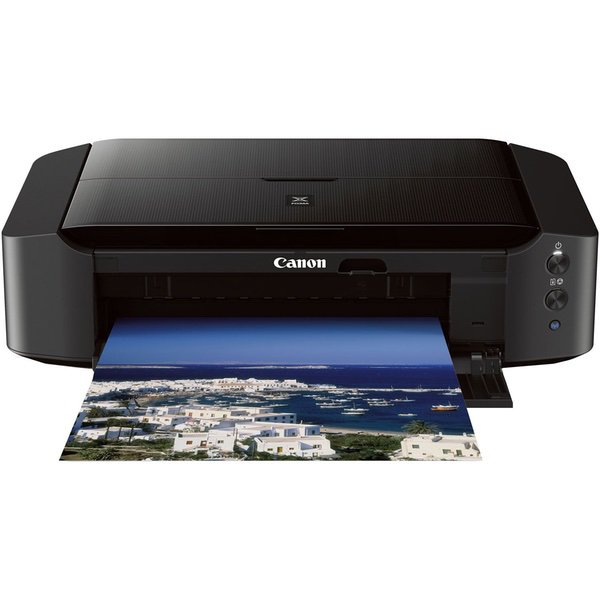
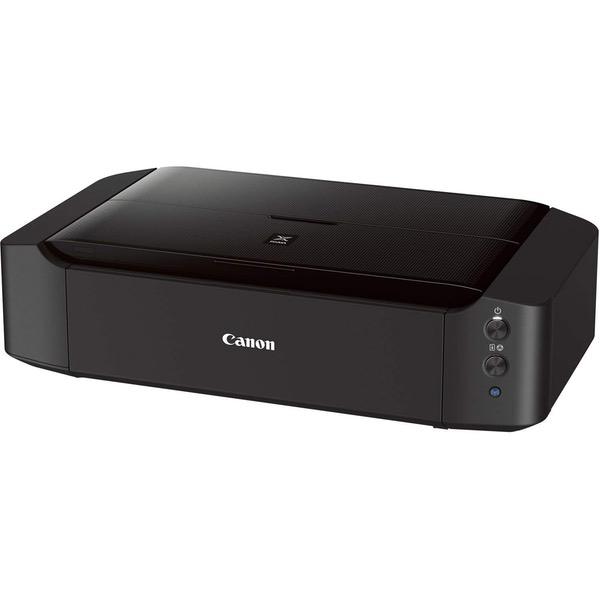
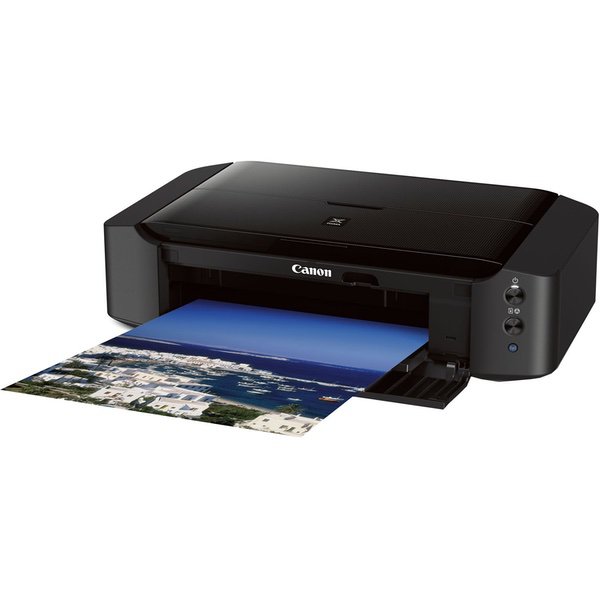
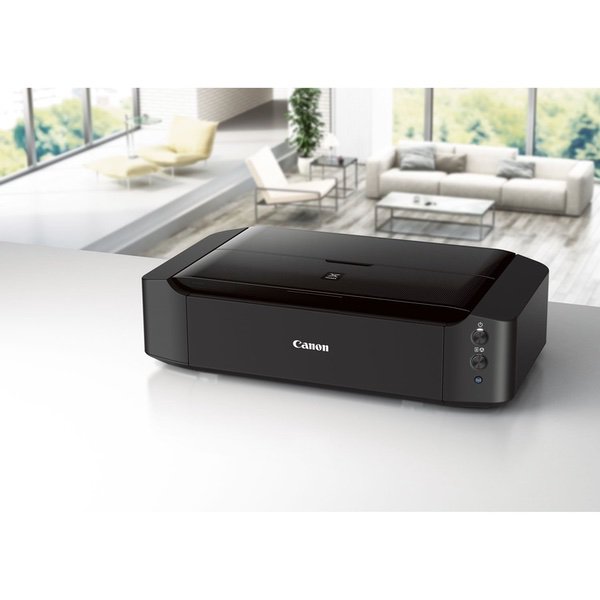
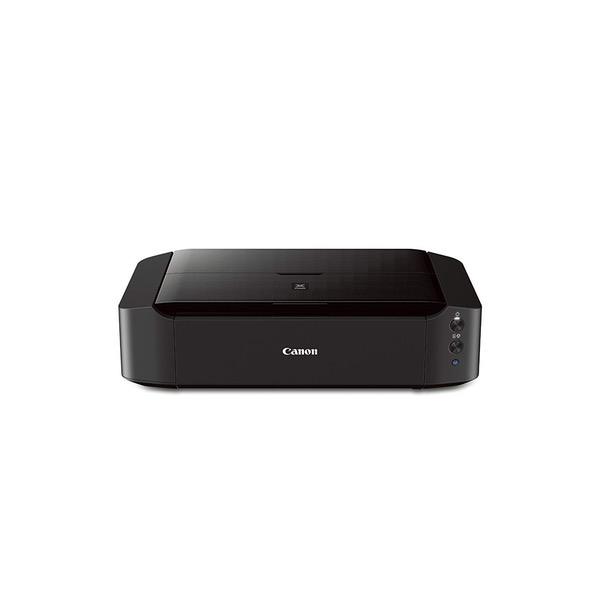
Canon PIXMA iP8720 + PGI-250 PGBK / CLI-251 CMY Combo Pack + 50 sheets Photo Paper Plus Glossy

Write a review
B00ZJRGX6O
Printer and Ink Bundle
Target is a general merchandise retailer with stores in all 50 states and the District...

City: US, New York

Delivery
Pickup at your own expense
Tomorrow from 09:00 to 20:00, Store location
Free
Payment options
Apple Pay Google Pay Mastercard Visa
Cash, bank card, credit/installment payments, cashless payment for legal entities
Warranty and returns
Exchange/return of products of proper quality within 14 days Official manufacturer's warranty: 12 months
Features
Style
Printer and Ink Bundle
Description
  • AirPrint: Print wirelessly and effortlessly from your compatible iPhone, iPad, or iPod touch - no drivers needed!
  • 9600 DPI produces exceptional printing detail for beautiful photos.
  • Showcase your memories in a big way by printing up to 13" x 19".
  • Get amazing color and detail with individual ink tanks.
  • Combo Pack includes black, cyan, magenta and yellow + 50 sheets of Photo Paper Plus Glossy
  • Easily print wirelessly from your Android, iPhone or tablet via PIXMA Printing Solutions and Google Cloud Print.
Reviews
3.7
Reviews: 20
5 stars
50%
4 stars
15%
3 stars
10%
2 stars
0%
1 star
25%
Grant Langhus
5
UPDATE 12/22/18: Printer finally died - yet still HIGHLY RECOMMENDED! We printed a TON - thousands - of 4x6s, many hundred 13x19, and thousands more 5x7 to 11x14s. Qty 139, 251XL cartridges over the life of the printer with zero issues. The print head failed, which is replaceable, but we decided to purchase another IP 8270 system due to volume on our original. We also have a Pro-100, but after owning the 8720 for almost 4 years, save your money...there is no discernible quality difference and the 8270 takes up far less space and doesnt weight a ton. UPDATE 2/14/16: Weve printed nearly 1200 images since purchasing the printer in Feb 2014 (majority 11x14 & 13x19) and have worked out the cost per sq inch to $0.007 to $0.009. Therefore, ink cost (purchasing 251 XL ink solely from Amazon) per 13x19 is $1.79 to $2.21. Canon Luster paper has averaged $0.69 per 13x19 sheet, for a total ink & paper cost of $2.48 to $2.90 per 13x19. Add another dollar to that for equipment wear and tear and a 13x19 is, worst-case, under $4.00. For every 1 PGBK cartridge, we go through: 3 BK, 8 GY, 6 C, 7 M, and 12 Y. Pros : Excellent print quality, Affordable, Color Management, Easy to Use, Large-format, Low Cost Per Square Inch, Speed Average To Fast, Color ink water resistant on Canon photo papers. Cons: Plastic Paper Guides/Flaps. Best Uses: Prosumer AND Professional Prints Describe Yourself : Semi-pro Photographer Was this a gift? No (Purchased from B&H; Ink & Paper from Amazon) PRINTER PURPOSE: Showcase amateur nature & landscape photography in our own home, and sell prints in limited quantities locally. CAMERAS: Canon T1i; T5i; 70D, 7D MkII LENSES: Canon 100-400 II, 200 f/2.8 IS II, 10-22 & 17-85 EF-S, 50mm 1.4 & 1.8, 85mm 1.8, 400 f/2.8 Mk I. REVIEW: Overall, were very satisfied with this printer. We are a prosumer customer having owned numerous photo-quality HP printers/MFPs over the past 13 years. Speed is average to fast. Quality is excellent - although I suspect high-quality papers contribute a lot (the Canon photo papers mentioned below have been excellent). Ink droplets are very minute, the smallest Ive seen in any system Ive owned. Color blending is also excellent - see the example Bluebird picture. Grayscale images are also excellent - much better than HP systems only utilizing a single black cartridge. Interestingly enough, we ran water over the alignment page, where the black bled slightly; blue did not. We then ran water over both a full-color and grayscale image and neither bled at all, nor were streaks/issues apparent after the print dried. We did notice the images printed a bit warm; again, see the example photos. Although this is nice in many photos, it posed a problem when we tried to print pictures of fall foliage - easy to correct in Photoshop, however. B&W images printed slightly dark - but not so dark that detail was lost like other systems Ive owned. Two thoughts - One, the wireless was a bit of a hassle, but due to our set-up and print volume, we ultimately settled for USB connectivity. Second, lots of plastic like most products these days, which Im not opposed to if done appropriately. The chassis is strong and built well, but the extendable paper guides/flaps for holding sheets as they are fed and exit could be built better. With dust concerns and opening/closing the system, I wonder how long theyll last. UPDATE 2/14/16: After two years, no issues. PAPER TYPES TESTED: Canon Pro Platinum 8.5x11, Luster 13x19, Plus Gloss II 4x6. UPDATE 2/14/16: Just tried the Moab Slickrock 300 Metallic paper, and wow - its just like ordering Metallic prints from a photo lab. The paper is very, very sensitive and chips/scratches easily, but the quality is tremendous for DIY at home. Put the print behind glass after it has a day or two to breathe to protect it. 2018 Update - weve also put a few rolls of Epson canvas through the printer (then stretched the canvas ourselves) TIP - make sure the canvas is perfectly flat, no roll, at the edges or the print head rubs. But, if done carefully, it works, and the results are excellent! https://www.amazon.com/gp/product/B004MT0RKS/ COMPUTER & POST-PROCESSING: Windows 7/8.1 (now Win 10) systems using USB, printing from both Photoshop & Lightroom CC. TESTING SCENARIO In general, we post-process lightly, attempting to retain a realistic photo and HDR only when required. After the Canon iP8720 arrived from B&H in Feb 2014, we printed a wide variety of color and grayscale shots that had been post-processed, on three types of Canon paper. PRODUCT PHOTOS were shot with a T1i, 10-22, no post-processing (see picture gallery/product photos gallery for our photos, located at top-most left side of page). PRINTED PHOTOS used to test the product were lightning in Florida (B&W); Flowers from Iowa; Badlands National Park, Fall colors from Iowa/Wisconsin, and mountain bluebird from Yellowstone National Park. Additional photos for testing, not shown, include Yosemite National Park, Death Valley National Park, and Grand Teton National Park.
Monica Seton
5
I am a hobiest photographer and I also enjoy scrapbooking. I got tired of waiting for my pictures from various printing companies and decided it was time to bite the bullet and buy my own printer. I did my due diligence & research, finally deciding on the Pixma iP8720. I am so glad I did. The quality is fantastic, setup was easy, and connecting to my WiFi was simple. I do suggest that you go ahead and purchase photo paper when you buy the printer, because it only comes with a few sheets. Be sure to practice on regular copy paper first, its cheaper. I also bought extra ink from Amazon so I wouldnt be caught off guard if I ran out. Its cheaper on here too. I researched that as well. Make sure you have plenty room for the printer, as it isnt small. Ive had it 3 days and have printed 8x10, 5x7, 4x6 in color and B&W. It can run dark unless you check your settings. It just takes some fine tuning like any other photography software. I hope you love it as much as I do! Happy shooting!!
Paul Z.
5
WiFi setup was easy with WPS button on router. Never needed to use a USB cable. Just followed the quick start guide. Ink is super easy to install. You get 6 inks including grey. Printed three 8x10 using the included software and printer paper. Using the auto correct button on my photos brightened them and made the colors richer (gama). Canon glossy photo paper has the same feel of darkroom paper. The print even has that same heavy feel to it. The colors have that rich darkroom dye transfer process look. I guess in a sense it is a dye transfer. Ive had three other photo quality ($300-$600) printers since 1995 and was never satisfied with the results. Im glad the technology has finally caught up to the darkroom process. Never did like washing and drying prints anyway.
Ryga
5
Ive owned this printer for a couple of months now. Once the color settings are dialed in (decent printer software), photos are excellent. Im a retired advertising creative director. For display prints, a step up in price/resolution would be a waste in my opinion. Printing on Canon Luster Paper, which is surprisingly affordable on Amazon. On my Mac, the auto OFF/ON does not function. Not a big deal. It loses its connection to my computer sometimes, an easy push-button fix. Also, one must download the drivers and instructions. The packaged manual seems to have been designed for children. Decent customer support. Its large format. Measure your desk to make sure it fits. Photo is comparison to small Canon scanner and compact HP Laserjet.
ultimate diyer
5
I purchased this printer on January 8th and have been trying to get it wireless ever since. I had an old canon printer that was connected via usb, so I had a cord to tether it. I have another canon printer that works wirelessly. I have never had a problem connecting anything else to my network. My router is older ( yet still free) from Verizon fios. There is no mechanical button to push to match hardware. It requires an encryption code to add on which quite frankly I like. But there is no way to input an encryption code here. So I hooked it up via usb. I emailed my self pictures from my kindle and got them to print. Oddly enough the kindle acknowledges my other canon printer (mg8120) which is inferior to this product in printing quality. I printed on both the 8120 and the 8720. The difference is quite noticeable. Much more streaking on the old printer but the photo is borderless. The 8720 photos are going to have to be cropped with a program because they print with borders and email data in the border. But the photo quality is much better. After some extra work I will have photos I would be proud to hang on my wall. I purchased this specifically because I wanted to be able to wirelessly print pictures from my laptop and kindle. I cannot do that. I couldnt down load a driver from canon because it is only available from google play and therefore I cannot download it to my kindle. Maybe to my laptop I havent tried. I also havent called customer support but will in the future . If something changes I will update my review. Do not buy this expecting to just print wirelessly with all your smart gear, it may not work. Really disappointed and pondering a return. Jan 23 update: So I said I would update and therefore I am. It seems the 10th time is the charm. I went to canons website and downloaded the software , yet again, from the website. Lo and behold I finally got a page that allowed me to input my WEP password. So my advice to anyone having the same problem I did, run the download from the website NOT the disc. First download for a wireless set up, when it says cant find wirelessly, stay on THAT page and click on set up via usb box ON THAT PAGE. Do not back up and start from scratch via usb as I did many times. The screen will tell you to plug in the cable, it will do some searching then ask for your router info and you can input your password. After hooking up to your network it will ask you to UNPLUG USB. You are in! I just printed a BEAUTIFUL picture directly from my kindle in 8x10, and I am happy as a clam.
Darren OHooligan
5
Make no mistake about it, This is a photo printer. I purchased this printer becuase I am a very amateur photographer and wanted to display my work in my mancave. i recently purchased a cheap epson to replace and older HP as i needed an everyday printer (ebay labels, recipes, etc) this printer claimed to print photos, which it does, albeit very poorly. They were not worth framing, or the paper they were printed on. Since I started shooting again, I thought I would look for a photo printer. I started doing some research and came across this printer. With the specs and reviews, i thought Id give it a shot. right out the box, this thing is pretty big considering it has no scanner, or even an lcd screen, it barely fit on my shelf. TKeep in mind this thing prints up to 13x19. which is pretty awesome. It Took a little long to hook up, and wouldnt connect to the network without a usb cable. But once it was all said and done, within 30 minutes i printed my first photo. At first print, i was a little underwhelemed.... .that is until i busted out some older photos printed on a "higher end" HP, and of course the epson i have hoooked up as well. The first thing that stood out was the accuracy of the colors. Even my wife said, "wow, what a difference". as a i started to print more and more photos i started analyzing each print. What was so amazing is how bright and glossy the ink was, compared the epson on its highest setting on the same paper. It actually looks like its printed on different paper. The fact it has 6 inks helps, and it is a dedicated photo printer, doesnt make it a fair comparison. While im very happy with the cheap epson i purchased, which is very feature rich for the price, this is my photo printer now. Which will save me ink on my epson. At the end of the day This printer is designed for one thing, PRINTING PHOTOS. (and maybe high quality media such as flyers, etc) Yes you can use it for color printing, and basic printing, but without a scanner or an LCD screen, it makes this thing pretty cumbersome for an everyday printer if you dont plan on using it for larger format media or photo printing. Its definitely best suited for high quality color prints and photos. There are some things to point out. First off, if you have any photo imaging software knowledge, you can print any size photo on any size paper. 2nd, since theres no LCD screen so setup sucks. Just keep a full-size USB cable handy, and youll be fine. This printer is for people who have a little technological known how, definitely not a newb.
StuE
5
I love this printer. Using either Canon or HP Premiere glossy papers Ive been getting outstanding results. I have some Ilford Galerie Prestige paper arriving soon, well see how it does with a thicker, more fiber-like paper. The gray ink tank made a major difference in my B&W print output, I have little to no color cast common on printers with color + black ink cartridges. Setup took less than 40 minutes, though I did run into a snag. The included driver isnt Windows10 compatible so it took an added 5 minutes to visit the Canon site and download the most current software and driver package. That wasnt my snag though. I have another 8X11 Canon printer that I want to keep online and available. The new iP8720 installation tried to overwrite the previously installed 8X11 printer. It took a few minutes of clicking and trying, but in the end both printers are online and available. I didnt read closely enough, this isnt a tray-feed printer. It has a top-feed feature that handles all paper sizes. Not a deal breaker for me, but be aware that you will need more space between this printer and your wall than a tray-feed system requires. This printer uses the same color and black cartridges used in my 8X11 printer which to me was a plus. Ive used professional lab 13X19 printers and roll printers up to 60" for years, and I find this Canon iP8720 a satisfying printer for hobbyist use.
bob
5
I’ve had several “prosumer” photo printers. A Pixma 9000, Canon Selphy, various HP photo printers. For the most part, they’ve always worked good, but have been a pain in terms of set up and software support, especially for a Mac. After my Pixma 9000 died I stopped printing for a long time. But lately I wanted to print some 8 x 10 and or larger photos. At just over $200 this printer was hard to resist. I received it yesterday and have only put a few prints thru it so this wont be an exhastive review. Print quality and cost per print are covered well in many of the other Amazon reviews here. I found this printer extremely easy to set up and start printing with. Maybe 30 minutes to open the box and get it set up with ink cartridges. I was able to hook the printer up to my Mac via WiFi using the Canon set up assistant in less than 10 minutes. After a test page or two, I was printing 8 X 10s. The photos look very good. I’m pleased with the tone and colors. I think with some finagling and experimenting with different papers (I used Canon Photgloss II paper) I’ll get even better results. This was probably the easiest printer I’ve set up
PairOfDocs
5
This printer is super easy to use. I use it to scale digital images up to my preferred size and print on Strathmore 300 series drawing paper (80 lb). This printer works great for printing out art work in any size up to 13" x 19". All you have to do is adjust the guides on the paper feed to fit your paper. NOTE: This printer has a combination of one large Pigment ink cartridge (PGI) for black text and FIVE dye ink cartridges (CLI) for color prints. One of the smaller dye ink cartridges contains the black used in color prints. The color dye ink uses the Canon ChromaLife 100+ ink which Canon says resists fading for approximately 30 years when covered by glass and NOT hung in direct sunlight. Canon web site on the Lightfastness of this ink states "The combination of the 2008 new Genuine Canon dye inks, FINE print head, and "Photo Paper Plus Glossy II PP-201", "Photo Paper Pro II PR-201" or "Photo Paper Pro Platinum PT-101" resists fading for approx. 30-years when displayed in a glass frame in a typical indoor space (estimating 500lux/ 10hours per day) without direct sunlight.*" Ive done standard 8.5 x 11, 9 x 12, 11 x 14. I have used up to 80 lb paper without any issues. Other reviewers have said that they printed on heavier card stock (110 lb) and watercolor paper (140 lb). On Windows you can set up custom paper sizes for each printer. Custom paper sizes work well with some apps like the original Windows Microsoft Paint. Ive just been using MS Paint to take the photo file and print to a custom paper size. On Windows 10: Control-Panel -> Devices and Printers -> Select the Printer -> Click Print Server Properties Tab On Devices and Printers dialog -> Forms 1. Check create a new form 2. Set the form name, sizes, and margins 3. Click Save Form. In your application, select the form size usually on either the Print form or the Print Setup. On Windows 10 for the Microsoft Paint application, paper form size selection is on the Print Page. On Windows 10: 1. Open Paint application (original Microsoft Paint) 2. Open image or photo file that you want to print 3. Select Print - brings up the Print dialog. 4. Select printer that you want to print on. 5. Click Preferences button 6. Select Page Setup tab on the tab ribbon near top of the dialog. 7. Select Page Size drop down and click on the Form size that you will be printing. 8. Click OK 9. Before you print: Make sure the correct size paper is loaded into the printer - set the paper guides to fit it (easy to do the guides just slide left or right to adjust the size). 10. Click the Print button at the bottom of the Print dialog.
A Sometimes Reviewer
5
I absolutely love, love, love this printer. The quality of prints and the color reproduction is just awesome. Ive gone a bit overboard with picture printing, since purchasing my iP8720. I paired this printer with the Canon Photo Paper Plus Semi-Gloss 5" x 7". The results were magical and far superior to any prints Ive made at pharmacies or other retailers. I am a ProDpi aficionado. I would definitely use this printer to print my personal work and maybe some of my professional work (on a smaller scale). I am also super surprised by how long the ink is lasting. Ive made 40 5" x 7" prints and 3 8" x 11.5" prints. Ive yet to put a dent in the ink. I couldnt be happier with this printer.
Product variations
Column filling
Sort by Price Sort by Availability Sort by CODE Sort by Style
$18900
In stock
+
B00HM0IV52
Style:
Printer
Contact us for a price
In stock
B00ZJRGX6O
Style:
Printer and Ink Bundle
You may be interested
  • Bestsellers
  • Recently Viewed
 
Fast and high quality delivery

Our company makes delivery all over the country

Quality assurance and service

We offer only those goods, in which quality we are sure

Returns within 30 days

You have 30 days to test your purchase