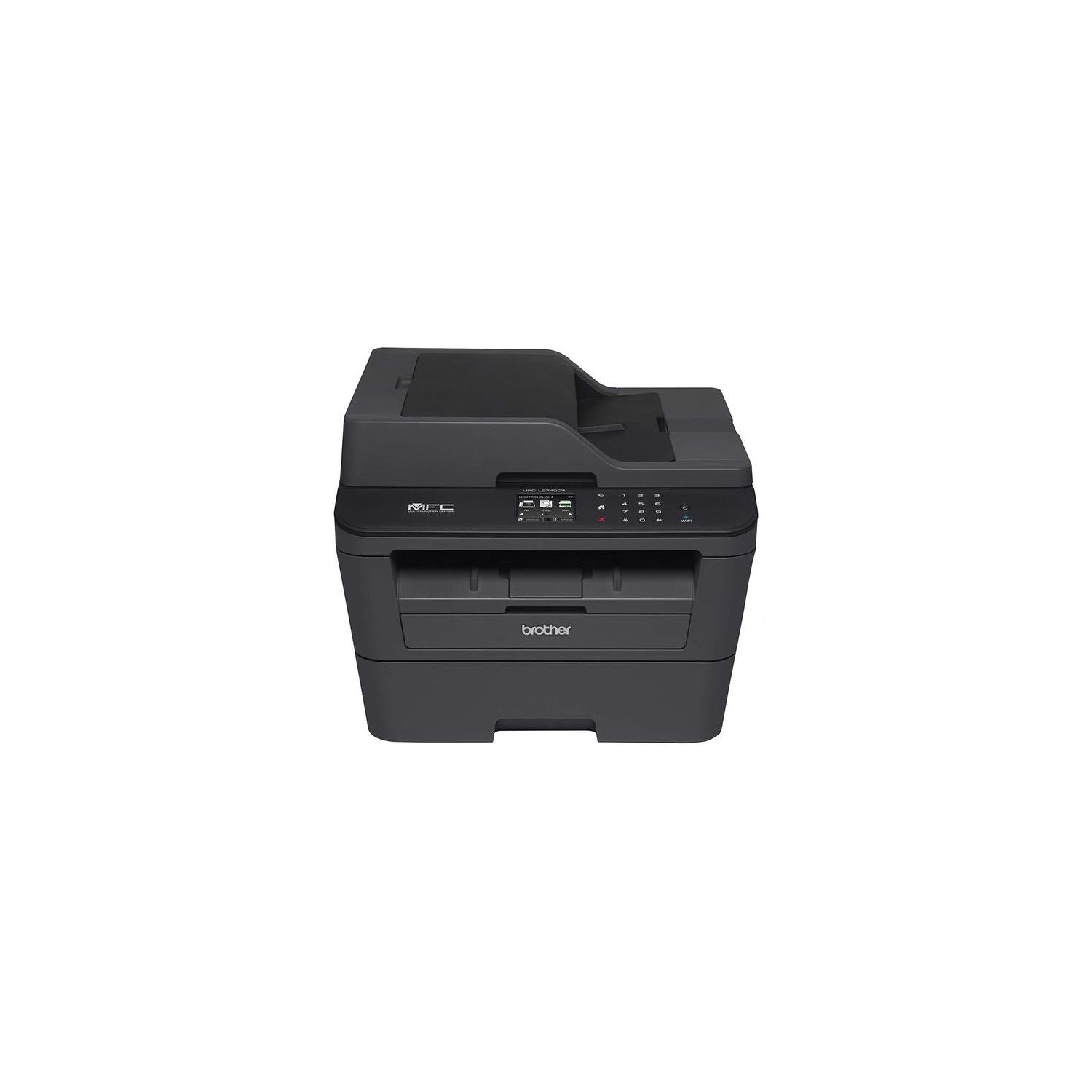
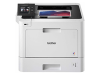

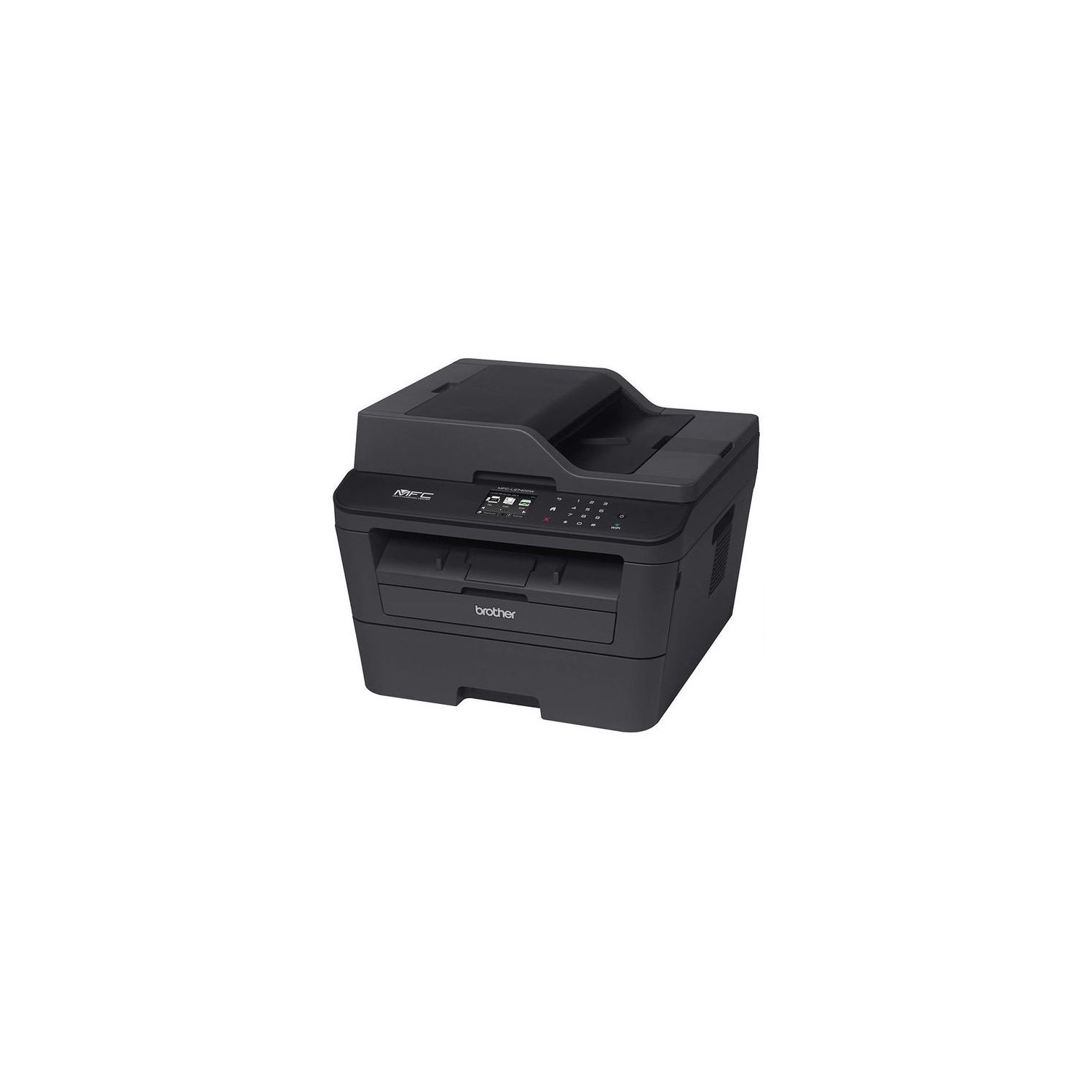
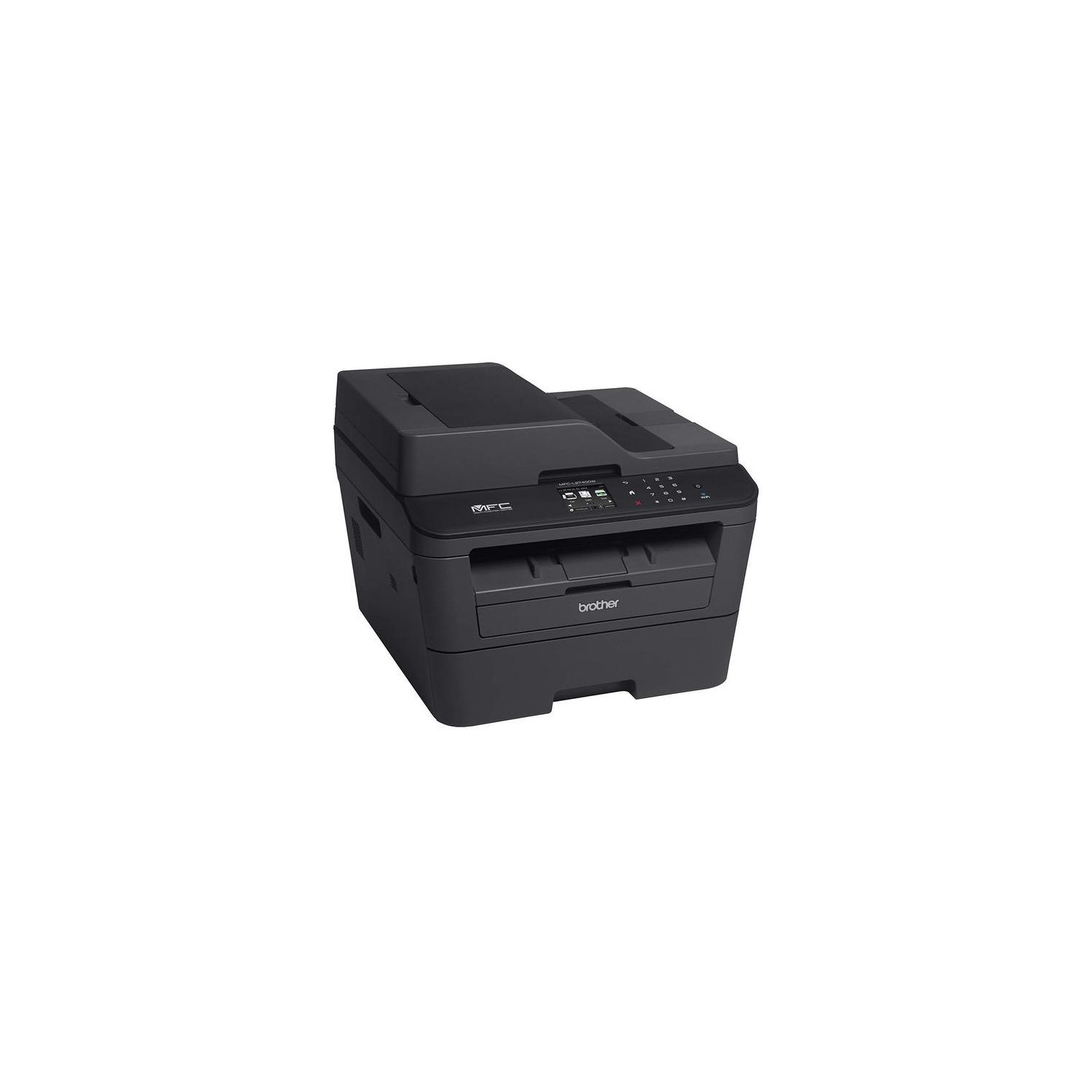
Make sure this fitsby entering your model number. Upon activation, the Amazon Dash Replenishment service measures the toner level and automatically orders toner from Amazon when low. This ensures that you never run out again. 2.7" color touchscreen display offers intuitive navigation to cloud services Dropbox, Google Drive, Evernote and more Fast high quality printing and copying up to 32 ppm and up to 2400 x 600 dpi resolution.Operating Temperature:50 °F to 90 °F (10 to 32 °C) " Wireless printing from your mobile device via AirPrint, Google Cloud Print, Brother iPrint & Scan, Cortado Workplace, Wi-Fi Direct 4-in-1 functionality (Print, Copy, Scan and Fax) with a 250 sheet capacity paper tray. Print Technology: Black & White Laser Technology Class 1 Laser Product, power output is enclosed. Scanning Capability: B/W &Color
Printing is quiet, fast and nice, even duplex printing. Installation was a breeze, or as a friend says "stupid easy". My work laptop uses the USB port and my personal laptop using Ethernet; one is Windows 7 64-bit and the other is Windows 10 64-bit. I have the printer connected via a UTP cable to my desks Gigabit Ethernet switch - I havent tried the wireless option. Ill use maybe 500 sheets of paper in one year - Im a light printer. I downloaded the latest software (~450MB) from Brother.com before installing. Just too lazy to find my USB CD/DVD device to connect to my laptop, and this made sure I had the most recent software. I dont do a lot of scanning, a few pages a week. When using the sheet feeder, scans are slightly crooked. No matter how hard I try to make SURE the sheet fits snugly in the sheet feeder and straight, it is off a bit. If Im not very careful, it can be crooked by a 1/4". Using the scanning bed is fine. I called support and went through a cleaning process. Still crooked. A new printer was sent quite quickly (kudos Brother!) and it too has the same problem. IMHO and from my experience if you do a lot of sheet feeder scanning and it is important pages are scanned straight, Id think twice. Maybe the ones Ive tried came from a defective manufacturing run as I returned the first device in less than week. I may wait a few months before logging another warranty issue and see if the problem was a defective manufacturing run that has been corrected. If others who have the MFCL-2750DW are not experiencing this problem, when you received your unit. Hard to believe Id get 2 that have the same issue unless it is a temporary manufacturing defect. Brother isnt some off-name brand. If do another warranty return, Ill provide an update.
Clarence Threepwood
4
After many months of ownership, Im upping the rating another star. The printer has proven itself in many ways-- including daily use in printing and copying, wireless printing from Macs, iPhones, and iPads, printing double-sided copies from the Mac or iPads, copying multi-page documents via the document feeder (much smoother and consistent operation than other printers weve had), solid scanning (even wirelessly), handling address label sheets, and even envelope feeding. Those qualities, and getting used to the printers idiosyncracies have turned it into a solid buy. PREVIOUS REVIEWS Raised the rating a star after finding a solution to the envelope issue (see below). Also, the document feeder is sturdy and closes, unlike many printers where things are exposed and collect dust. Also, added additional observations in response to a request for an update (see comments). That includes a solution to the problem where the printer wont print multiple copies of a Word document (update the printer driver--you can download it for free from the Brother support site). Alas, one other thing… the printing is not that dark! I discovered this today when I noticed that the documents seemed a bit on the faint side. [NOTE; "on the faint side"--not "faint" per se. Its usable, just not as dark as other lasers weve had or the Brother inkjet we also use.] I had happened to print the exact same page earlier in the day on a Brother inkjet (475) and that was *dark*, crisp and much easier to look at. Not sure what is going on. The cartridge still has a fair amount of ink in it. I even upped the settings to 1200 dpi, increased print density well above the default, selected text, etc. No dice. While slightly better, still not dark; still not as good as the 475s output. Ill report back on this if I figure out whats going on... Still not as dark with a generic cartridge, even with higher DPI settings and toner saver mode turned off. May just try a genuine Brother toner cartridge at some point. ----------------------- Overall, this seems a good printer, but also has a set of disappointments. Were veteran Brother printer users (as well as having had HP, Canon, and Epson). We bought this to replace a venerable Brother DCP-7020, which, like Timex watches, just keeps ticking, or like the Energizer Bunny, just keeps going! :-) However, the 7020 is not wireless and when its toner expired, we figured it was time to get a new AirPrint-capable, multifunction device instead. Hence, our purchase of the 2740. By the way, whats with Brothers naming conventions? DCP, MFC, 2540, 2700, 2720, 2740, etc. They also have far too many printers that barely differ. You go to their website and look at a feature comparison and they are virtually indistinguishable! Its a nightmare as a consumer trying to figure out which one to buy! We did figure out that DCP stands for Digital Copier Printer-- i.e., without fax capabilities; while MFC = Multifunction Center and includes fax. PROS OF THE 2740 1. Wireless set up was easy. Brother must have listened to the complaints because there is a fold out sheet of set up directions included. You do have to download the latest Brother drivers and software. Tip: On the Brother website, you have to click on "Search" even if it is already showing you your OS. Also, in the installing process, when the screen with the additional software shows up, click on each to install, even though it looks as if you should click on Next! 2. AirPrint from iPhones and iPads works like a charm. 3. Printing and copying are fast. 4. Controls are intuitive. 5. 250-page paper tray--although actual capacity needs to be determined--its often less and one never should fill the tray to the top or you rich paper jams. 6. Inexpensive generic toner cartridges ( as low as $15) with good reputations are available, so operating costs should be excellent. 7. Wonderfully knows to not print black borders around pages when copying! Thats great when copying pages from books. UPDATE: TURNS OUT TO HAVE BEEN A FLUKE! Have not had luck in latest copies. 8. Turns on very quickly--i.e., when power is completely OFF (i.e., not in standby, but from when it has been shut off). CONS OF THE 2740 1. Printer is loud-- its noisy both on wake from sleep and during printing. This is true even in quiet mode. No doubt those in busy offices or noisy homes-- or, those who attended too many ear-damaging rock concerts when young :-) -- will find it OK. Note: Clearly, people vary in their hearing sensitivity, so this judgment will vary by person, but if you are someone who has good hearing or is sensitive to noise, you will likely find this printer on the noisy side when in operation--its definitely louder than some older Brother printers. Its probably something one can get used to. Its silent when sleeping. Note: I just printed wirelessly from the living room to the upstairs bedroom and its loud enough that I could hear the printer! Thats actually good, though, as it let me know that the print job took! 2. -----> DISCOVERED A FIX FOR THIS ISSUE. READ ON! Envelope printing is a convoluted, unfriendly, inefficient mess. Unlike older Brother printers where you could simply put an envelope in the front open feeder-- and out it would come--this printer requires opening up front and back trays and 15 or so total steps! Here are the problems with that. To use the straight-through path requires opening up the back output tray-- however, if, as most of us do, your printer is up against the wall, that requires moving the printer out. But then, you also have to poke around and find the envelope levers well inside, which are not visible unless you rotate the printer to gain access! (Even if you have room to lower the tray in the back, the printed envelope still will shoot out hitting the wall!). But now the printer has to be re-rotated to lower the front envelope *input* tray--which dismally takes only ONE envelope at a time! After printing, you need to go through the whole rigamarole in reverse order because those envelope levers in the back need to be raised back to their usual up position. Its doubtful that one will want to print envelopes much given all that. Id much rather live with the slightly curled envelopes of the older printers than go through all of that. (Perhaps envelopes will work with the regular output path...) OK, TESTED THE REGULAR PATH! It works like a charm. Just feed in the envelope from the front and let it print normally. Theres but a slight bend to the envelope--far less than on the 7020. So, one can ignore the straight-through, 15-step song-and-dance! (Note: You can open the front feeder in a jiffy; the front sliders can be already set for envelopes; and youre off to the races.) 3. Copying from magazines or books has a major gotcha! If the rest of the magazine or book hangs down (which is almost always the case), the copy "button" in the touch screen is covered up. There is no physical copy or start button on the far right of the machine as there was in the older Brother multifunctions. The older design is MUCH better. Here you have to lift the pages to get to the button and that makes it harder to keep the page (or hold down the book) in place to be copied. Making things worse, the numbers are touch-pressure sensitive (they are not physical buttons) and, when a page of the mag or book brushes against a number, it is all too easy to inadvertently raise the number of copies to 12 or 16 or 19! Today, when I tested this to double-check it, the copy # ended up at 33! Given how fast these modern printers print, youre liable to end up with gobs of extra copies you dont want. Yes, the solution is to always monitor the number thats been set, but one may forget, especially when all you want to do is make a quick one-page copy. Brother should change the sensitivity of the numbers on the touch panel-- and add a Print/Copy button on the lower far right side of the printer. 4. The Home icon button pulses when the printer is sleep mode! Thats a distraction. There is no option to turn that off. (The pulsing icon is not needed because one knows the printer is on because the Wi-fi icon is lit up.) Oddly, at times it goes off completely, then mysteriously starts pulsing again (that hasnt happened for a while). 5. The touch screen intermittently lights up even when in sleep mode! Not a major complaint; just weird. That also hasnt happened for a while. 6. Wireless printing takes time--the printer is a slow riser from its naps! :-) We have a Brother inkjet that is definitely faster. No doubt this is related to warming up the laser fuser for printing, but its worth noting. 7. The printer stinks, especially when printing! It reeked enough that we opened up our study windows even though the temperature was 10 degrees outside! Several days later and it still stinks on printing. 8. How long will the touch screen last? Thats a concern and a gamble, whereas the sometimes hard to read LCD screens have a long reliability history. BOTTOM LINE Were on the fence about returning it. Can we get used to these irritants and deficiencies? Or, to quote Tina Fey, are they "deal breakers"? Will any other printer solve them? Or, as is likely, will they have their own miserable trade-offs?! UPDATE AND CONCLUSION We kept it and really like it! Its plusses well outweigh the minuses, glitches, and oddities.
MP3
4
I purchased this to replace an inkjet multifunction printer for my home office. I ordered this model based on my experience with a Brother printer in the office, and because it was the lowest priced model to have a duplex scanner with ADF. So far, so good. Only two negatives so far: 1) Unlike my printer in the office, this model doesnt let you add a 2nd paper tray; I use the one in the office for legal paper and automatically switch between that and letter. 2) My old HP inkjet would scan to e-mail. This model can scan to FTP but not e-mail, as far as I can figure out anyway. Also, the dunce who posted a 1-star review because they thought this was a color printer should learn to read; Im not sure why they need a printer at all.
Amazon Customer
4
In some ways I love this product. Set up is very easy, prints look good, and scans work very, very well. Im very pleased with the Automatic Document Feeder, in particular. I can just drop in 30 corrected tests, press the "scan" button, and automatically get a folder full of high-quality two-sided scans. That said, I HATE that I cant use it as a replacement to my 2340, which is a standard Brother printer. With this printer, if you print more than 20 or 30 pages, whether its one long document or a short document printed many times, it will say that its out of memory, and cancel the print job in the middle. Keep in mind, this is just printing word files, not complicated graphs or pictures. Even if there was a way to fix that, the paper tray is not large enough to physically fit much more. Totally stupid design, and I cant recommend it for general use for that reason.
Product variations
Column filling
Sort by Price
Sort by Availability
Sort by CODE
Sort by Style
$26500
In stock
B00MRAU8OE
Style:
MFCL2740DW
Contact us for a price
In stock
B0763X6TCW
Style:
New Model: MFCL2750DW
$16900
In stock
B01BHSKXM8
Style:
Refurbished Model: EMFCL2740DW
Contact us for a price
In stock
B07641MHV2
Style:
XL Version: includes 2 years of toner
Please sign in so that we can notify you about a reply