

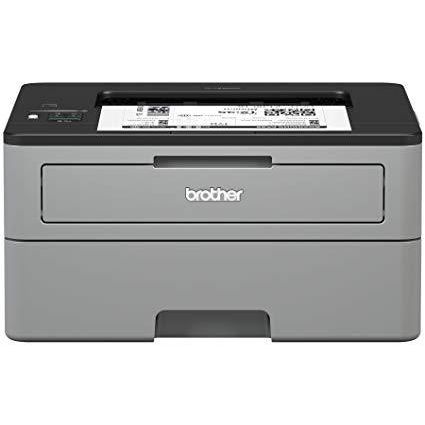
Brother Compact Monochrome Laser Printer, HL-L2350DW, Wireless Printing, Duplex Two-Sided Printing, Amazon Dash Replenishment Enabled

Write a review
B0763WDSYZ
New Model: HL-L2350DW
Target is a general merchandise retailer with stores in all 50 states and the District...

City: US, New York

Delivery
Pickup at your own expense
Tomorrow from 09:00 to 20:00, Store location
Free
Payment options
Apple Pay Google Pay Mastercard Visa
Cash, bank card, credit/installment payments, cashless payment for legal entities
Warranty and returns
Exchange/return of products of proper quality within 14 days Official manufacturer's warranty: 12 months
Features
Connectivity Technology
Wi-Fi
Item Dimensions
14.2 x 14 x 7.2 in
Item Weight
15.9 lbs
Operating System
  • Windows, Mac, Linux
Printer Output
Monochrome
Printer Technology
Laser
Style
New Model: HL-L2350DW
Description
This fits your .
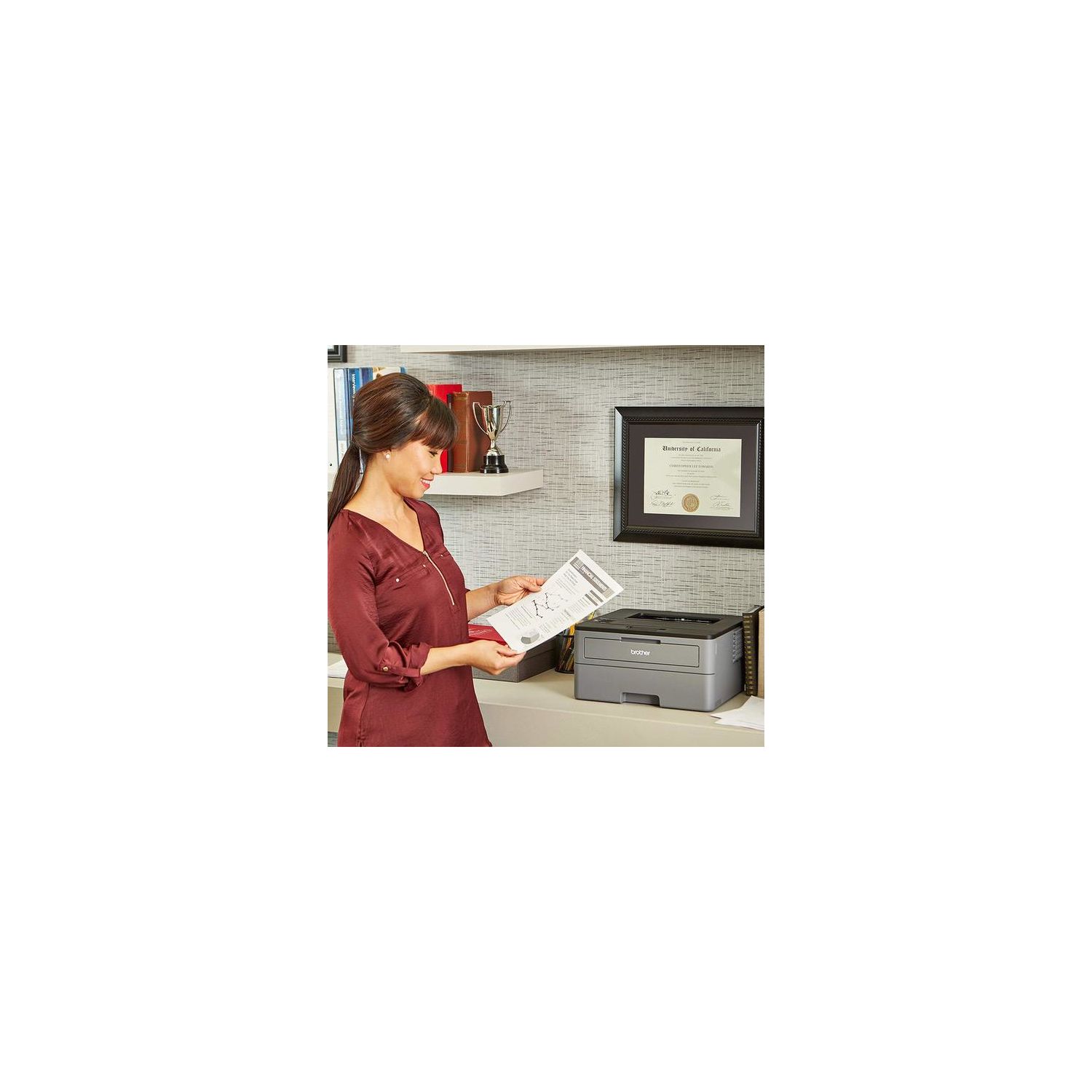
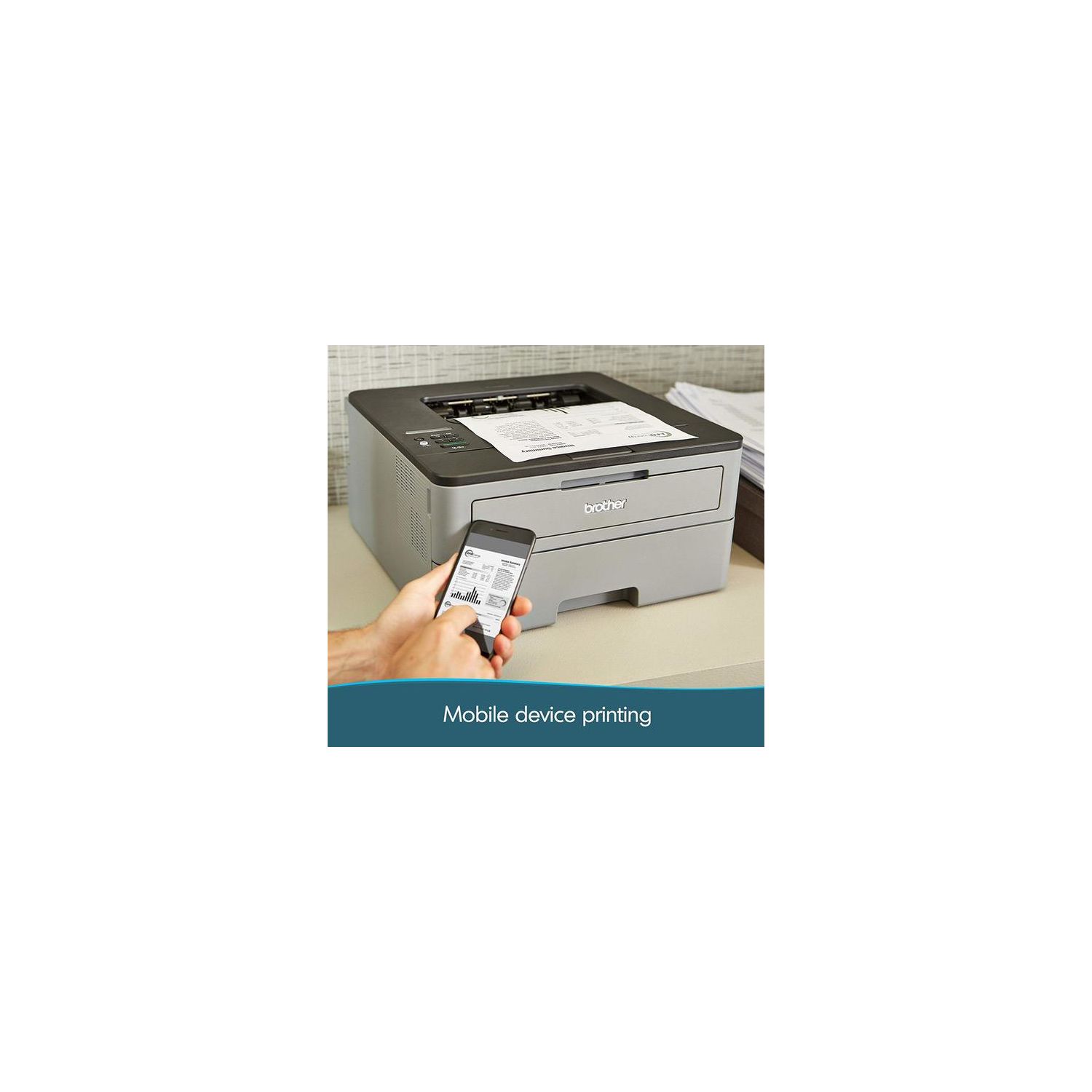
Make sure this fits by entering your model number. COMPACT BUT HIGHLY PRODUCTIVE – Perfectly sized to fit on smaller desks or in tight spaces, the Brother Compact Laser Printer is the perfect solution for the busy home or small office OPTIMIZED FOR EFFICIENCY – Packed with new features, the HL-L2350DW (replacement for the HLL2340DW) is optimized for efficiency, allowing you to print up to 32 pages per minute, making it a class leader(1). Maximum Monthly Duty Cycle- 15,000 pages.Recommended Monthly Print Volume- Up to 2,000 pages FASTER, HIGH-QUALITY PRINTS – This Brother compact laser printer is built with a 250-sheet paper capacity that helps improve efficiency due to less time spent refilling trays. It also handles both letter and legal-sized paper DUPLEX PRINTING – Printing on both sides is easy with automatic duplex (two-sided) printing. Using Brother Genuine high-yield replacement cartridges (TN-760) delivers up to twice the print volume at lower costs(3) WIRELESS PRINTING & EXCEPTIONAL SUPPORT – The easy-to-link wireless technology allows you to submit print jobs from your laptop, smartphone, desktop, and tablets(2). We provide free online, call, or live chat support for the life of your printer. At Brother, we want to ensure that your experience with us is exceptional AMAZON DASH REPLENISHMENT ENABLED: Upon activation, Amazon Dash Replenishment measures the toner level and orders more from Amazon when it’s low.Standard Interface:Wireless 802.11 b/g/n, Hi-Speed USB 2.0, Wi Fi Direct
Reviews
2.9
Reviews: 20
5 stars
25%
4 stars
20%
3 stars
15%
2 stars
0%
1 star
40%
DSCme
4
I have purchased 3 of these Printers. One for Daughter in College (we have saved $$$ by not needed to purchase as much injet ink) One for my Home Office (use it for PCs, Macs, iPhones, iPads) One for my elderly Mother and Father who have to futz with their old inkjet printer each time they use it (theyre printing from PCs and iPhones). We all love them. And let’s face it … 95% of what we print doesnt need to be in color. This printer is fast, prints duplex with ease and the ink cartridge last a long time and it doesnt get gummed up like inkjets do after a period of non-use. I’m only giving 4 starts since in the beginning I had issues with iOS devices not finding the printer. I’m not intimidated by technology - but this took a lot of digging to figure out. Now that I’ve finally got the iOS issue resolved these printers are perfect for our needs. This is what I’ve done to make these printers work well with iOS devices: - First - Do Not use the WPS connection mode. Use a Printer USB cable connected to a computer to set up the wifi on this printer. Make sure you find your SSID and enter your wifi password. - Turn off Deep Sleep Mode (google for instructions or find in another review of this printer) - Extend the sleep time (mine are at 50min) - Set Auto Off at 1hr (not sure if this is needed but I suggest it anyway, it will not power off since it will be asleep before the hour comes up) - Once all this is done … power-down the machine and restart it. ****** Update ******* I found that the printer sometimes goes away and is not discoverable by my Apple devices and the printer must be rebooted. However there seems to be a fix for this as well. If you enable IPv6 Protocol on the printer it is always visible to my Apple devices. Warning this is not for the faint of heart but should be is easy enough for the average user. Step 1) First you must find your printers network IP Address. Do this by printing out the Printers Network Configuration. On the Printer: Push the Up Key (+) until you see Machine Info. Displayed and Press OK Push the Up Key (+) until you see Print NetSettings and Press OK A Network Configuration Page will print. On this print out you will find the IP Address (should be something like this 10.0.0.XXX Step 2) Open a Browser on your computer and input this URL: http://<printer_IP_Address> This will open up the web configuration interface Follow this navigation to enable IPv6: Network Tab > Protocol Click on the Advanced Settings link for AirPrint Click on IPv6 (Wireless)>> Select IPv6 as Enabled and make the selection to Enable this Address (no need to fill anything out) and click on the Submit button The Printer always shows up as an available device in all our Apple and IBM devices.
Dan C.
4
The HL-L2340DW has replaced my decade-old HL-1440, and Im completely happy with it. Wireless setup is a breeze, even without a computer. It took me 8 minutes (timed) from unboxing the printer to my first wireless print on Mac OS X. Thanks to the 16 character LCD display, you can pretty easily poke your way through menus to configure everything about the printer, including Wi-Fi networks (Network -> WLAN -> Setup Wizard). Or you can just use WPS: press a button on your router, press a button on your printer, and youre done. Both methods worked fabulously. Once connected, you can visit the printers admin interface in your browser to tweak addition settings or configure Google Cloud Print. The printer immediately appeared in Mac OS X 10.9s "Nearby Printers" list, and drivers were automatically downloaded and configured the first time I attempted to print to it. It took a bit longer to set it up in Ubuntu, but it did eventually work under Linux. One word of warning: when the printer decides that its time to replace the toner, it will simply stop printing, even if theres still adequate toner remaining. Per the user manual, you can "turn on Continue Mode to force the machine to continue printing even if the control panel indicates that it is time to replace the toner cartridge." Unfortunately, "when the Replace Toner error message is active, you cannot turn this mode on unless you change the toner cartridge." ...So make sure you turn on Continue Mode early in the toners life. Its easy to set on the printer itself (General Setup -> Replace Toner -> Continue), or via the web interface. Otherwise, Im pretty happy. Its a printer.
Julia T.
4
Works great. Wi-Fi can be set up (tediously) from the printers tiny LCD screen, which saved me tracking down a PC or Mac. The output is fine for text documents; the dithering of greys is not great, but thats not important to me. The web interface is a bit clunky, but it gets the job done. Importantly for me, it works with Cloud Print, so I dont need to install drivers everywhere. If youre having trouble with the "Deep Sleep" mode that sometimes makes the printer inaccessible over the network, try this: 1. Using the up/down/OK keys, select General Setup > Ecology > Sleep Time on the printers tiny screen. You should see "1Min" (or something else, if you changed the sleep time). 2. Press the back button and the down button at the same time. You should see "Deep Sleep". 3. Press OK. You should see "On". 4. Press up or down. You should see "Off". 5. Press OK. You should see "1 Min" again. 6. Press OK again. You should see "Accepted". Deep Sleep should now be disabled, and your printer should stay accessible over the network. Also, if you then find the printer is still offline in Cloud Print, you can toggle Cloud Print off and on in the Network > Protocol screen of the web interface and it will come online again; you wont need to re-register it or power-cycle the printer (which might also work).
Amazon Customer
4
Great printer for the price! One issue I ran into was replacing the toner. I had a new toner to insert, but the printer kept saying "replace toner" despite my following all of the instructions. I almost gave up after hours of troubleshooting...but then finally found a method to reset the printers sensor of the toner. I hope this review can be found by anyone who runs into this problem, as I looked at the reviews to try and find the answer as one of my search strategies: 1) Open front cover and leave open 2) Turn printer off 3) Hold the go button while turning on printer 4) After 3 seconds release the go button 5) (USER MODE) will appear 6) Press the go button NINE times 7) The Wifi LED will flash once 8) Press the go button 5 times (nothing will happen after this) 9) Close the cover. Your toner is now reset to 100%.
Product variations
Column filling
Sort by Price Sort by Availability Sort by CODE Sort by Style
Contact us for a price
In stock
B0763WDSYZ
Style:
New Model: HL-L2350DW
$24900
In stock
+
B0763TXM5Q
Style:
XL Version (incl. 2 years of Toner)
Contact us for a price
In stock
B00LZS5EEI
Style:
HL-L2340DW
You may be interested
  • Bestsellers
  • Recently Viewed
 
Fast and high quality delivery

Our company makes delivery all over the country

Quality assurance and service

We offer only those goods, in which quality we are sure

Returns within 30 days

You have 30 days to test your purchase