












When
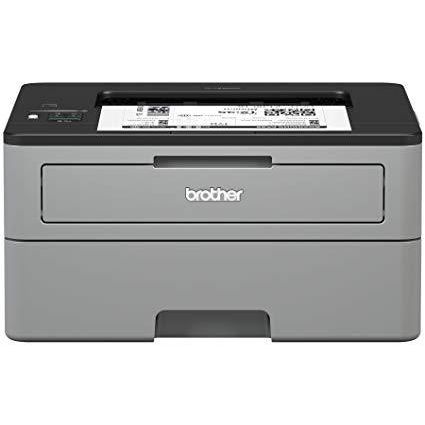
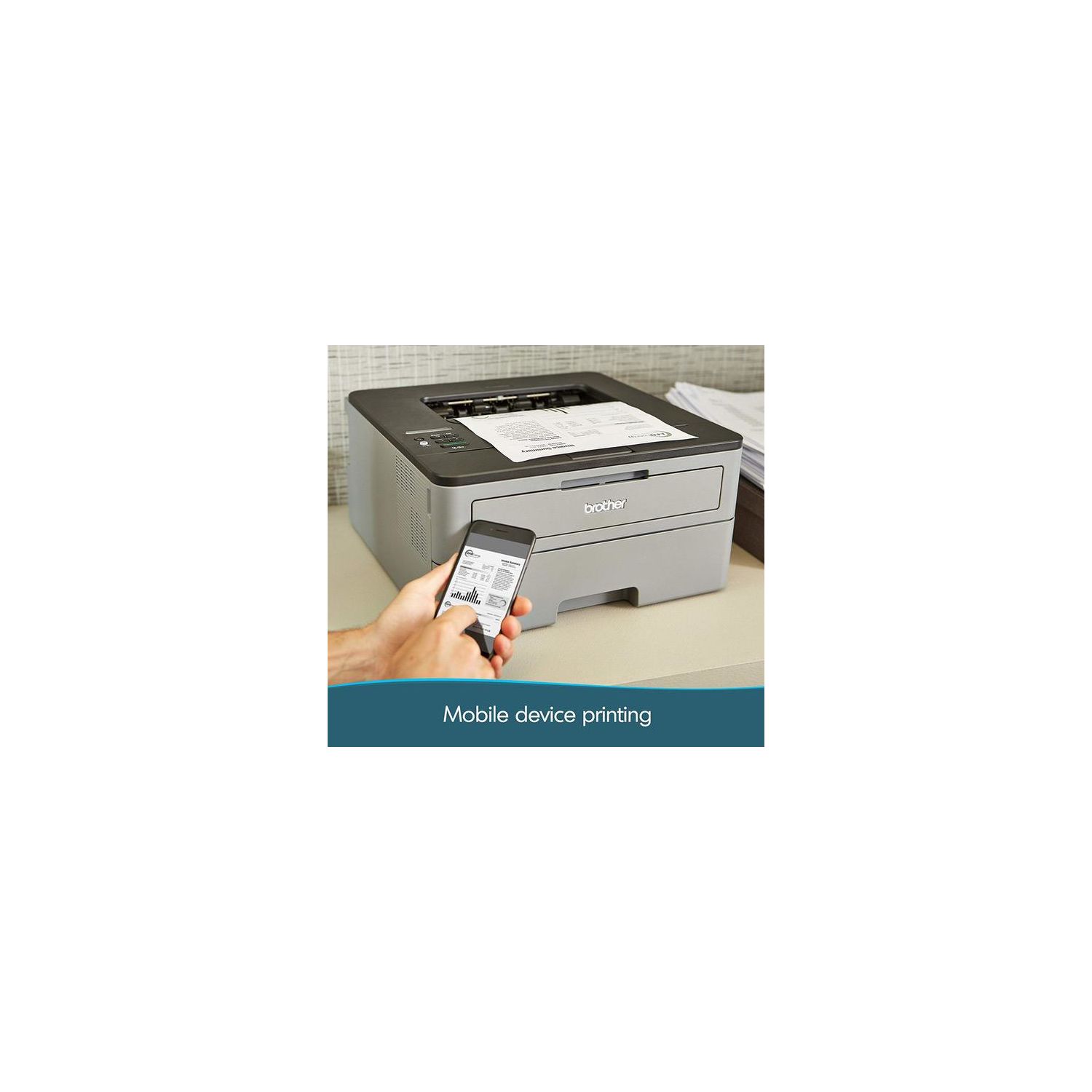
I would not recommend this printer to anyone looking to print from a Mac because it was a huge pain to set up and then keep it working properly (read on to understand why!). Id keep looking for a better option with foolproof installation on all platforms. I bought this printer based on the good reviews to print both from my kids chromebooks and my MacBook Pro (OS 10.8.5). It took longer than it said it should to install including enabling Google cloud printing for the Chromebooks, but I was able to print from both devices. However, the next time I tried to print from my Mac, it could not find the printer. After some research online, it appeared this was due to the printer being in deep sleep mode and the printer not automatically waking as it should when sent a print job. I didnt think this would be too bad of an issue if I could remotely wake the printer each time before sending the job. But when I accessed the printer settings page (http://10.0.0.130 for my printer) I could verify the printer was in sleep mode, but there was no way to change it or wake it up. I was annoyed at the thought that I was going to have to walk over to the printer every time I wanted to print and press one of the buttons to manually wake it up before sending a print job (defeats the purpose of having a wireless printer!), but the printer didnt even wake up pressing its buttons (despite the manual saying this should work). Alas, more research revealed that the REAL problem might be my Mac wasnt finding the printer because of its IP address. I was first clued into this by dupuytren in this thread -- http://forums.macrumors.com/showthread.php?t=1849993 -- where he said that the printer and router address need to be similar, i.e. starting with the same numbers as in 10.0.0.XXX. His werent and changing his printer ip to be similar to that of the router fixed his problem, at least until he ran into another issue that caused him to buy another router (no thanks!). But this thread (http://www.fixya.com/support/t6151863-mfc_7840w_printer) gave me hope my Mac still wasnt finding my printer because of its IP address. So (thanks to dupuytren instructions) I looked up and verified my printers ip address on the printer itself: 1. On printer press Up/Down or +/- button until you see Network. Press Ok. 2. Using Up/Down, follow WLAN>Press OK>TCP/IP>Press OK>IP address. 3. Write down IP address, including all 0s. Mine was 010.000.000.130 Then I went on my Mac to see if I could manually add the printer using this IP address. So I opened System Preferences, Print & Scan. Hit the (+) button to add a printer. (Note my printer did not show up on Default tab since my whole issue is my Mac cannot find the printer!) On IP tab under address, entered the IP address I just wrote down (010.000.000.130), leaving Protocol as "Line Printer Daemon - LPD", Queue empty, Name - gave it something useful, Location empty, Use - picked this printer model driver (guess it was there because I previously installed it). Viola! I sent a print job and it found the printer and started firing up! Why did this work? Actually Im not sure. I find it hard to believe that the when I set up the printer set up on my Mac by IP address that the extra 0s mattered. Though I had previously tried adding this printer on my mac using the IP address without the extra 0s (10.0.0.130) but it gave me an error. Now, I wonder if it has to do with the "WLAN" setting on the printer. I read somewhere that Brother printers wont enter deep sleep if that is on. So may that is why it is printing fine now -- it no longer seems to be entering into deep sleep mode. To check your printer WLan setting, go to the printer page in your browser and under Lists/Reports, print "Network Configuration". Note, one step I had also done (but I dont think made a difference), is change the IP setting on my printer to be static instead of the default auto (used the buttons on the printer and the directions provided by dupuytren). But I dont think this mattered in my solution because I never changed the IP address and it has remained the same since I first connected my printer. But this will prevent it from changing moving forward. As to my rating, I really like the speed and output of this printer but cannot give it more than 3 stars since it was such a pain to get working with a Mac, which is advertised as being compatible with! 4/11/25--UPDATE Since I got this printer successfully printing jobs from my Macbook, I noticed the printer no longer enters DEEP SLEEP mode only SLEEP mode. Im not sure what change I made that caused this to happen, but I suspect this is why I am able to print. 11/20/2015--UPDATE For whatever reason, this week I had a problem with my printer set-up. I think somehow the static IP address I set was changed, but the problem it caused was that my kids Chromebooks could see the printer but it was showing as "offline" so they could not send it print jobs. This problem persisted even after I reset the printer to the same static IP address I had been using. So, I figured the best thing to do would be to delete the printer from Google, re-register it to my account and then reshare the printer to my kids google accounts. Well thats when my problems really started! When I went into the printer web interface (http://10.0.0.130 for my printer), selected the "network" tab, then "protocol" and then clicked on Google Cloud Print, I got to the page with the button to "register" my printer with Google Cloud Print. Well it didnt work and gave me an error that it couldnt connect to Google. After calling Brother support, they told me it was a problem with my Google account. I disagreed with them, as it was never getting to the step where it prompts you for your Google account information. After much insistence, the support person escalated my call to "level 5" and said Id get a call back from a software engineer-type person the next day. Meanwhile, I kept repeatedly going through the network setup wizard (using the buttons on the printer) and lo and behold it finally set it up slightly differently. It automatically used I think DCHP as the boot method and then that caused the "gateway id" and "subnet mask" to be populated with real numbers (previously both all zeros). When I retried registering my printer with Google, it worked! I since went back and changed the boot method to static ip address (it had already assigned the same static ip address value I had been using). The only other parameter difference I noted is ipv6 is now off (had turned on earlier to see if that would help). Needless to say, I printed out all the printer settings, so if I ever have an issue again I can reset the settings to this now working state. As an IMPORTANT aside....in all my research to get this working, I found online directions on HOW TO DISABLE THE DEEP SLEEP (that is not an option in the printer web interface or on the printer itself, well at least not an obvious option). Again, Im not positive if the Deep Sleep mode being activate is why I had my original problems with my Macbook not being able to access the printer, but Im pretty sure it was the reason, so Im happy to know how to turn off DEEP SLEEP and keep it off (as when my new issues began this week, DEEP SLEEP was somehow reactivated on my printer). To cancel DEEP SLEEP on Brother Printer, using the buttons on the printer... (source: http://serverfault.com/questions/416422/brother-4150-cdn-deep-sleep-how-do-i-disable) ------------------------------------------------------------------------------------------------------------------------------------ Use arrow buttons to scroll through menu choices... Go to General Setup then OK Ecology then OK SLEEP TIME then OK While sleep time is display push Down Arrow and BACK at the same time! Then press OK. DEEP SLEEP on/off toggle by Arrow keys OK to SAVE Deep Sleep off. ------------------------------------------------------------------------------------------------------------------------------------ Re: brother support, I finally did get a call back (2 days later) from a software engine-type who was more knowledgeable. I had already fixed the problem by then on my own, but he did seem interested in testing some of this out. Also surprisingly he had never heard that the DEEP SLEEP setting was something that could be turned on/off, and said while it might be something they dont want to advertise to the general public, it would probably make sense to incorporate it into their own internal support database.


