



Unless otherwise noted, Black Friday Ad items are available for sale November 22, 2025–November 28, 2025. Prices and offers are subject to change and are valid online during, but may start before and end after, the Ad dates. Product quantities are limited. Rainchecks are NOT available for advertised products in the Black Friday Ad. We reserve the right to limit quantities (no dealers). Online pricing and store pricing may vary.
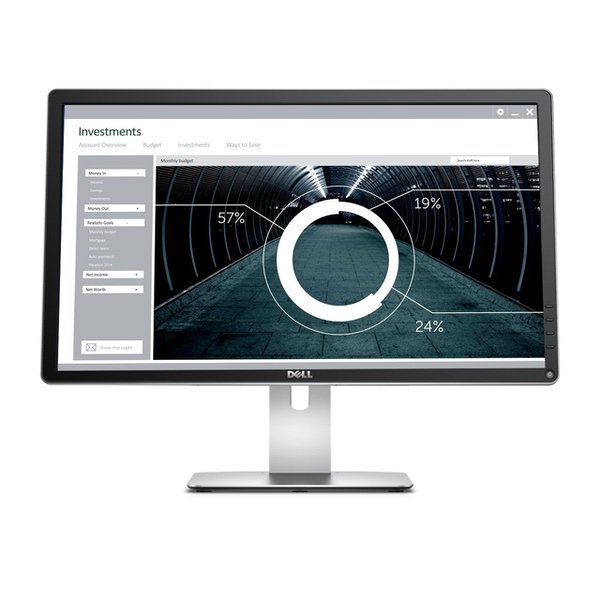
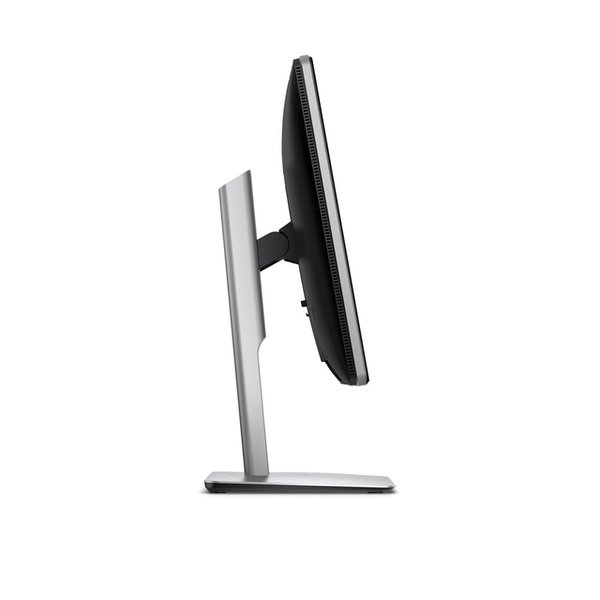
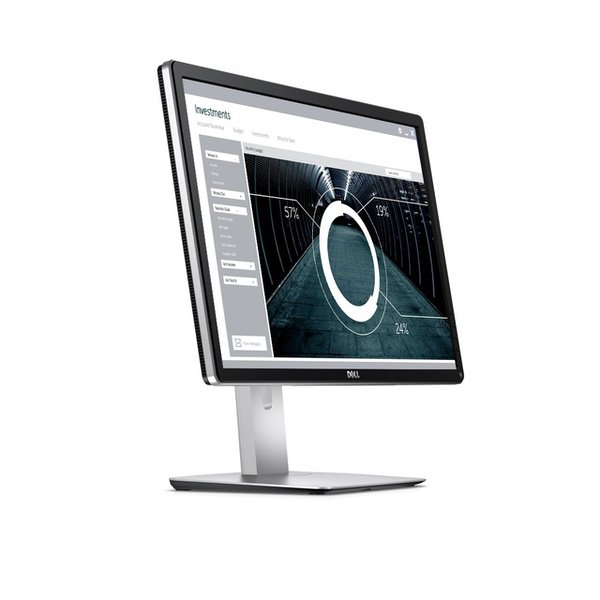
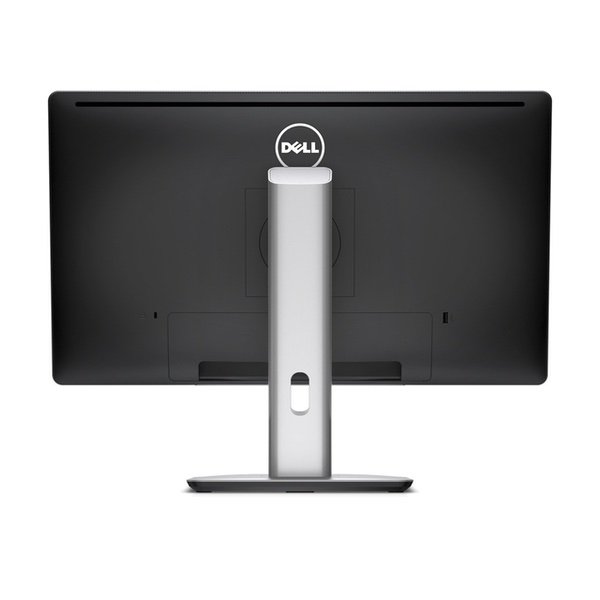
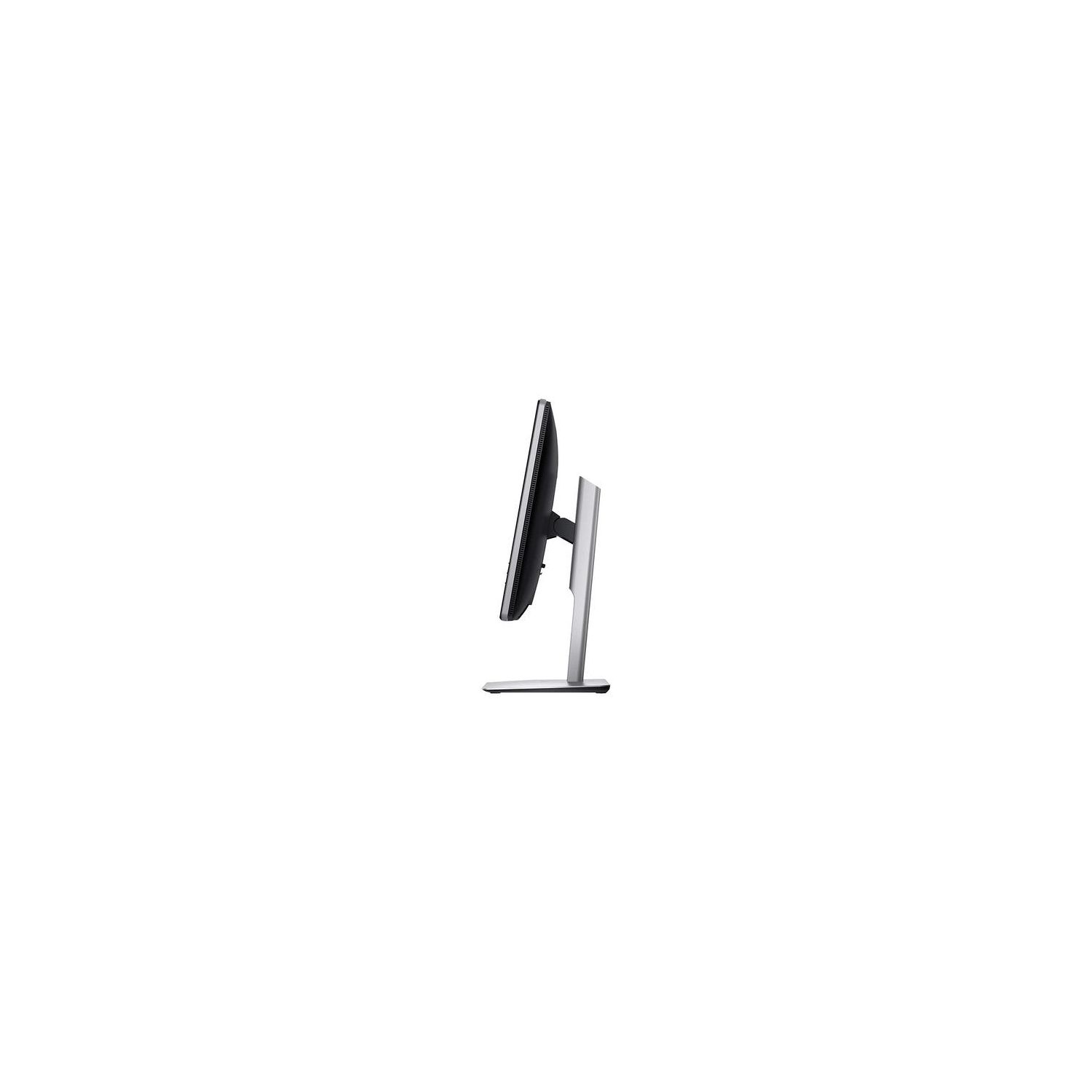
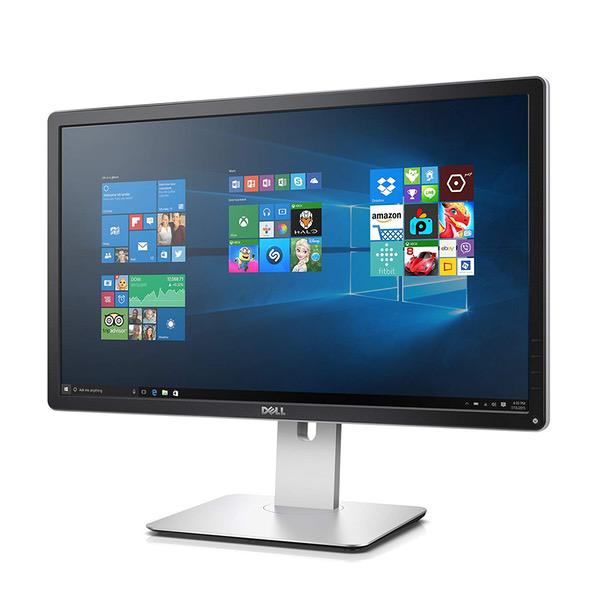
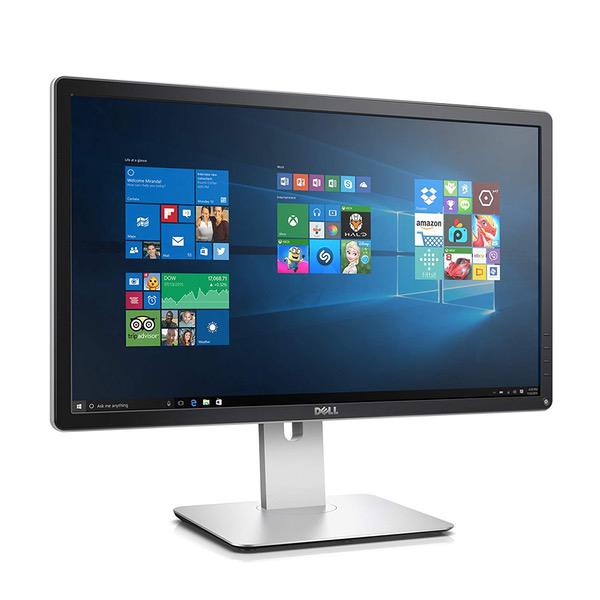
Make sure this fitsby entering your model number. With 99% sRGB color coverage, and a factory color calibration report to certify that each monitor arrives at a deltaE of <3, youcan be sure that colors are as accurate as they can be. Maximize your viewing options by adjusting the monitor to your desired height, or easily tilt or swivel to your preferred angle.Pivot from landscape to portrait view to easily see full pages at a glance. Customize your viewing experience with the height adjustable stand, or save valuable desktop space by detaching the stand forwall mounting with a VESA-compatible 100mm x 100mm wall mount kit (wall mounting equipment sold separately) This product does not have inbuilt speakers. There is a Speaker-line out. Dual side-by-side monitor arm adjusts effortlessly for easy use Arms extend and retract, tilt to change reading angles, and rotate from landscape-to-portrait mode; tilt range 70° back and 5° forward Increases desktop space (desk clamp fits desks between 0.4" up to 2.4"); ergonomic positioning for reduced strain Easy viewing - no need to toggle between applications
Image Quality: 10/10 Ease of Set Up: 10/10 Value for Money: 10/10 I recently purchased a 2015 Macbook Pro 13 w/ Retina Display and was so overwhelmed by the color and text quality that I decided I needed to upgrade my desktop monitor as well. I wanted something that was plug-and-play using a display-port cable, and ultimately I chose this monitor for these reasons: 1 - the 24" has the highest pixel density for the resolution -- if you go up to 27 or 28" you will get excellent resolution but not as crisp text 2 - the color testing by Dell provides 99% accuracy -- my side by side photos enclosed show the color accuracy 3 - I wanted expansion capabilities in the back of the monitor -- the 4 x USB SuperSpeed (3.0) ports come in handy on my desktop 4 - the base is extremely stable -- no wobble 5 - the monitor does not crash/fail to wake up when the laptop goes to sleep -- *Note* -- I find that if it is slow to wake up after being asleep for a long time simply pressing the menu button above the power button on the face of the display wakes up the monitor immediately 6 - the colors are the SAME as my Macbook side by side, and the text is the same degree of sharpness side by side as well 7 - I am able to use the Dell supplied display-port cable out of the box and plug it into my Thunderbolt port and it auto detects every time. *Note* -- do not use a Thunderbolt cable to your Mac -- it will not detect the monitor. Use the cable supplied by Dell. 8 - The display-port cable provides audio output support, so you can plug your desktop speakers into the Dell Monitor rather than your Macbook and it works perfectly fine. *Note* -- the display-port audio out port disables the audio control on your MAC so you need to use speakers with volume control built in or plug your audio system into your Mac to retain the volume control functionality. 9 - Antiglare is easier on the eyes -- this monitor does not come with the glossy image you see in the Macbook Retina Display which I thought would bother me, but side by side, it is actually EASIER to work in Photoshop without the glossy image than with it. I dont know how else to describe it except to say once you buy this monitor you will throw your Apple Cinema Display in the garbage. Plug and play out of the box with my Macbook Pro 13, no support issues, no video card issues,
Jason Luo
5
According to Dells official website, P2415Q and P2715Q monitors purchased after Feb 2016 have HDMI 2.0 with 4K@60fps support! You just need to enable it manually since its not enabled by default from the factory. 1. Unplug all video cables from the display. (Leave only the power connected to the display.) 2. Power on the display. 3. Select the HDMI (MHL) input option. (A floating dialogue box will appear.) 4. Press and hold the button associated with the Green check mark for 6 to 8 seconds (the 3rd button from the top). 5. A dialogue box appear that states HDMI 1.4 Enable/Disable 6. Select the option to Disable HDMI 1.4 support and press the button next to the green check mark to confirm the selection. 7. Re-connect the video cables to the display It works fantastically with my new Fire TV Cube. (Yes, I dont have a TV :P) This monitor has really great image quality and extremely high pixel density. The stand is very flexible too. It can be easily adjusted to nearly any position you want. Now that it supports HDMI 2.0, this is no doubt the best 4K monitor with the most value packed inside. I would definitely recommend it.
David Catena
5
I bought this monitor earlier this week on the bases of the specs available from Dell, Amazon, and various reviews. Also saw review after review that listed this monitor as about the greatest thing since sliced bread (in its price range and for its intended use). So imagine my disappointment when the monitor would ONLY run at 30Hz, regardless of the screen resolution! I fiddled and faddled, and got no joy. I even dropped a support request on the video card manufacturer (Gigabyte), they just said, "Your monitor is not reporting the ability to operate at 60Hz." Whatever that means. I finally found a solution deep in Dells Support Blog. You can find this article by entering “How to get Dell P2715Q to 60Hz” into your search engine. Then select the option “Setting up the P2415Q/P2715Q Monitors with HDMI 2.0 with…- Dell”. This will link to an article in Dell’s Support blog. The article provides the following instructions and even includes screen shots for clarity: >---< How to Enable HDMI 2.0 on the Version A03 Displays You can enable HDMI 2.0 in your P2415Q or P2715Q flat panel displays purchased after February 2016 using the following steps: 1. Unplug all video cables from the display. (Leave only the power connected to the display.) 2. Power on the display. 3. Select the HDMI (MHL) input option. (A floating dialogue box will appear.) 4. Press and hold the button associated with the Green check mark for 6 to 8 seconds (Figure 1). 5. A dialogue box appear that states HDMI 1.4 Enable/Disable 6. Select the option to Disable HDMI 1.4 support and press the button next to the green check mark to confirm the selection. 7. Re-connect the video cables to the display NOTE: Performing a Factory Reset of the display in the On-Screen Display (OSD) menu (Open the OSD menu by pressing the button above the power button, then arrow down to and select Other, then arrow down to and select Factory Reset), will revert the display back to HDMI 1.4 and this change to HDMI 2.0 will need to be repeated. >---< This actually works. Turns out that the monitor is able to operate at 60 Hz at ALL resolutions, but if you have connected the monitor with an HDMI 2.0 cable, it operates as if it has been connected with an HDMI 1.4 cable, and the 1.4 cable maxes out at 30 Hz. The fix is to DISABLE HDMI 1.4, then the monitor will default to HDMI 2.0 and will then automatically operate at 60Hz. These instructions disable HDMI 1.4, allowing the monitor to perform as expected. Note that this procedure only works on monitors constructed after February, 2016. Once this fix is implemented, the monitor is simply gorgeous, I would certainly buy it again.
Yang Y.
5
Very nice monitor! I am using it with my MacBook Pro 15 inch (mid-2015), which can support 60 hz output via display port 1.2 that comes with the monitor packaging. Right out of the box, I saw the matte screen that doesnt reflect much glare. The installation of the stand onto the back of the monitor is easy. The power button is on the low right corner. I appreciate that the power cord doesnt have an huge adaptor on it, just a cord. The monitor stand is so versatile. You can turn the monitor horizontally, raise the height of it, and even change it to portrait mode! And the good thing is the monitor doesnt wobble very much when you touch the top of it. The overall design of the monitor isnt the greatest looking out there (like the ASUS MX27AQ), but its certainly not bad either. The edge around the panel is neither too big nor small. The thickness isnt too bad either. The ports selection is great. It has 4 USB ports, including one with fast charging. Theres also one display port out so you can daisy chain your monitors. One more HDMI with MHL so you can use your phone or tablet for the display. But the ports are in a awkward position where you have to plug your cables upwards. Time to turn on the display! A display port comes with the package so I just used it to connect my Mac to the display. As a 4k display, you notice very crisp content when you are viewing text and photographs. The color is great and the viewing angle is fantastic benefiting from the IPS panel. The model I got doesnt have backlighting issues. The brightness is so great that normally I just have to use it at 20%. The black levels though are not fantastic. You cant see 1-5. As far as color gamut, its been tested (using professional colorimeter) to have 99% sRGB and about 76% of Adobe RGB which is awesome for its price range. Photographers and videographers can definitely take advantage of its resolution and color accuracy. It doesnt come with speaks so you have to buy your own. For intense gamers, its not so competent. The response rate isnt comparable to those gaming monitors. So for fps games, you would certainly need some 144 hz monitors to bring out the best performance. General games are definitely playable buy you need very good graphics cards to drive the high resolution display. Overall I think for its price and functionality, its one of the best-value and performance 4k monitors out there and I would recommend it to people who need the resolution. Pros: 1. Very bright and good brightness distribution 2. Good viewing angle 3. Ergonomic stand for adjusting angle and height 4. Very decent color accuracy of 76% Adobe RGB coverage 5. 4 USB 3.0 ports and a display out port 6. 60 hz via display port output (if your computer is capable of 60 hz) 7. Mount compatible Cons: 1. Weird positioning of the ports 2. No speakers 3. No HDMI 2.0 port for 60 hz at 4k
Deborah A. Clark
5
I bought this monitor for my new Macbook Pro 2017. If anyone else is making this particular match, youll need to get a different cable from the one that comes with the monitor, which is for a Thunderbolt 2 connection. This is the cable youll need, given that the new macbook pro has only Thunderbolt 3 ports on it: Plugable USB-C to DisplayPort Adapter Cable (6/1.8m) for 2016 / 2017 MacBook Pro, MacBook Retina 2015 / 2016, Chromebook Pixel, Thunderbolt 3 & More (Supports 4K / UHD Displays up to 3840x2160@60Hz). Once I discovered an online comment about this cable being the only one that apparently currently works in this situation, I ordered one and plugged it in - voila! this is the solution, and, with this cable now getting the monitor hooked up to the macbook, I love the monitor.
Ryan D
5
Great monitor. I have this with a retina 5K iMac and I actually think this looks better. That shouldnt be since its technically lower resolution and its smaller and it has a lower color gamut. But iMac screens always looks a bit fuzzy to me for some reason--but they try to make up for it by being so bright and colorful you might not notice. This monitor actually looks sharper to me--after you tweak the settings a bit. If you want a high resolution screen and dont want to spend too much, this is a great option. The 27 inch version might also be a great choice but since the two monitors have the exact same 4K resolution, the bigger screen may look slightly less sharp.
javapro
5
Im running this via DisplayPort, off a late 2013 Macbook Pro with Nvidia GT 750m discrete graphics, 16 GB RAM and 1 TB SSD. My OS X version is: Mavericks 10.9.5. In general, Im very particular about monitors and LCDs. So, I wasnt expecting too much with this monitor and only bought it out of necessity..needed the extra real estate for web development. The built-in 15" LCD on the macbook, while fairly nice after calibration, is both super reflective and way too small, and these two factors added with my poor vision, gets to a point of severely diminishing productivity after some years. This monitor is utterly fantastic. Ive owned several SGI 1600SW flat panels, which back in the day, cost $3000 (!) a piece. This feels exactly like a 1600SW, except modern-er and better-er. No sleep or wakeup issues either. Of course, you have to calibrate it (use advanced settings when calibrating via display control panel) and also futz with color modes on the monitor, etc. My settings: Monitor: custom color preset (no further mod), with brightness about 27 and contrast 49. OS X: calibrated profile, 6500K during day and f.lux at 5000K during evenings. === Update 1: Display did not wake up after sleep. (Im running in clamshell mode, with the Dell being the only active display). After the computer went to sleep overnight, I hit the keyboard/mouse this morning and the display didnt show any content. Weirdly, the power button on the monitor was constantly on (not pulsing) even though there was no content. Pressing/holding down the power button didnt do anything (couldnt turn off the monitor). I had to power cycle the monitor off the power supply and futz with the displayport cable (unplug,plug) etc a few time for this to work. Apparently, this is a known issue. I have the rev A02 panel by the way, which was made in March 2015 if I remember correctly (I ordered from amazon in November and received about a 6 month old panel). So, I ve set the macbook to never sleep and will turn on/off the monitor at night manually. Im hoping this strategy will work. Still 5/5 for the monitor itself, great LCD but some firmware bugs still present in rev A02. Update 2: To get reliable sleep/wake, I first turn off the monitor (so the only display is the laptop), then sleep the laptop. Wake up is the reverse sequence. Using Display Maid to remember all my window positions and it works like a charm. Update 3: I bought another one of these (from Dell directly this time). Two of these will not work connected to the two displayports at the same time. However, works great with one on the displayport and the other on HDMI. Was worried that HDMI (due to lower refresh rate) would have massive cursor lag, but I cant see any cursor lag (at all) or any difference between the displayport and the HDMI. Very happy with this setup. Im using both these monitors at 1920x180 mode (which is effectively the Retina pixel doubled mode).
John Smith
5
I was looking for a 27-inch 4K monitor to use with a MacBook dock. I first ordered Samsung U28E590D because it was slightly larger (i.e 28 inches) and less expensive (under $400). But after ordering that monitor, I quickly realized that it was not IPS and the display quality was significantly lower even though it was a 4K monitor. I returned it and ordered this Dell monitor and I could not be happier. This is a great monitor to be used with a high resolution computer (laptop or desktop). I am using it with two MacBooks, a 15-inch Retina and 13-inch MacBook Pro. I am using a AmazonBasics Mini DisplayPort to connect the MacBook using this monitor’s DisplayPort. I get the maximum resolution supported by the monitor (3840 x 2160 pixels). At its maximum resolution the text becomes very small so I have it scale down to the display to 1080 to make it more readable. At this setting the text is so incredibly crisp and sharp that it rival that of MacBook’s retina display. I should also point out that my primary purpose for getting this monitor was coding/programming. My work involves looking at multiple text-based files and working at my MacBook terminal. This monitor is perfect for that purpose. I have not tested it with any games so I cannot comment on refresh rate when with games, etc. I love this monitor and I highly recommend it.
MV
5
The monitor supports the 4k streamed by my 2018 Macbook Pro. It also works with my PS4 Pro. I originally had trouble getting the full 4k 60hz from my PS4, but Jason Luos review saved me. Im quoting it to provide greater visibility and hopefully help out more people facing this issue. "According to Dells official website, P2415Q and P2715Q monitors purchased after Feb 2016 have HDMI 2.0 with 4K@60fps support! You just need to enable it manually since its not enabled by default from the factory. 1. Unplug all video cables from the display. (Leave only the power connected to the display.) 2. Power on the display. 3. Select the HDMI (MHL) input option. (A floating dialogue box will appear.) 4. Press and hold the button associated with the Green check mark for 6 to 8 seconds (the 3rd button from the top). [make sure the input selections appear first then hold for 6 to 8 seconds] 5. A dialogue box appear that states HDMI 1.4 Enable/Disable 6. Select the option to Disable HDMI 1.4 support and press the button next to the green check mark to confirm the selection. 7. Re-connect the video cables to the display"
George D
5
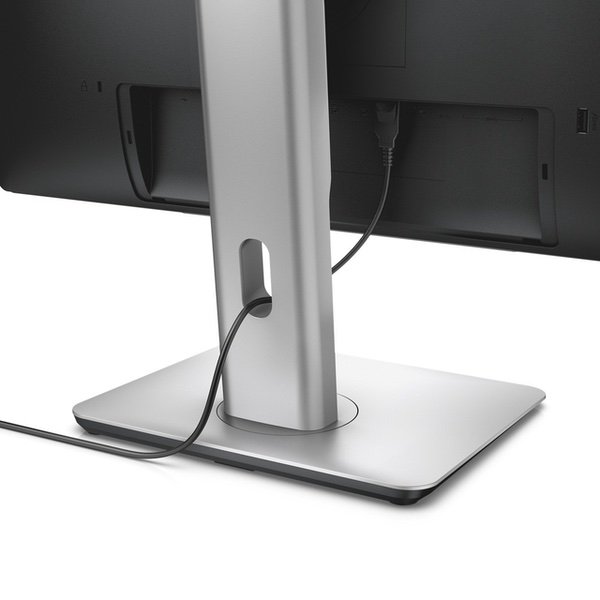
Pros: The monitor is beautiful. Simply put, this thing is 27" of 4K happiness. First things first: Ive owned a variety of monitors over the years. NEC, Dell, Samsung, LG, and so on. Ive always been very hard on my monitors. They get use at least 8 hours a day and Im particularly picky about color reproduction. In my experience, the Dell Ultrasharp monitors have always been very high quality. This will be my third, and Im very glad it is. The basics: 27", a bunch of input/output options, an adjustable stand, and a slab of viewable area. Design: The casing is black and silver and very understated, which I like. Dell has foregone the touch buttons on the face for physical buttons (which I wholeheartedly agree with). The buttons are typical monitor buttons, nothing special. The stand allows you to lift the monitor fairly high and rotate it fully without any interference. The stand is pretty fantastic, despite my thought when I first got it that it wouldnt sufficiently hold the monitor. I can assure you, it does. The stand also has a cutout for wires to loop through and keep it nice and tidy. The peripheral stuff works really well. One USB in from the computer gives you 4 outputs. One is on the vertical back face of the monitor and the other three are tucked under the back of the monitor on a cutout. I got the sound bar that attaches to this computer (511) and I highly recommend it, so figure on that taking one of the slots from you. Transfer rate is good but not stellar, as is to be expected from any hub. It has a sound-out slot that works well, nothing special about it. Video connections: The important bit. Has a DisplayPort and HDMI in. When youre trying to get full 4K at 60Hz, please use the DisplayPort. I toyed with this stuff for hours. It was frustrating. You will see this in the "Cons" section. The Panel itself: The panel is very, very nice. Color reproduction is good. The profile that it comes with from the factory was okay, but left some room to be desired. A little bit of time with an i1 made it much better, though it would barely be noticeable to the trained eye. The IPS panel is as perfect as you can expect. Even backlight, perfect viewing angles, and generally a very nice viewing experience. Price: Are you kidding me? 4K at this price with this much quality? Im seriously considering purchasing a second one. Cons: The controls: You want 4K to display at 60Hz? Dont listen to anything anyone tells you online. I was seriously hamstrung for hours trying to get this thing to display 4K off of my 2014 MBPr 15". I tried every combination of connections, connected a Thunderbolt to each port, tried HDMI, everything. Turns out that the setting that controls the 4K through DisplayPort that the manual told me to turn on? Yeah that was wrong. As soon as I turned off MST, the whole thing worked perfectly. Otherwise, the menus are fairly easy to navigate. Everything is bright on the screen, so you will be able to see it. I have a minor gripe about the way the buttons function, but once you get the hang of it, it really isnt a big deal at all. Customer Service: Dell customer service is .... less than desirable. I purchased this thing through their business division and that was ok. They wouldnt let me apply discounts that I should have been able to, but compensated for it in other ways. However, once I ran into the whole 30Hz/60Hz snafoo, then I really started to hate Dell. The department I needed to talk to was closed on a Monday ALL DAY, and not a holiday either. Then when I did talk to someone the next day, it took a long wait and difficulty understanding the tech (VERY thick accent) before I stumbled over the answer and figured it out on my own. Other Thoughts: If youre thinking about this monitor and you have the cash, stop looking at other ones. Buy this. You and your eyes will be incredibly happy that you do.
Showing 10 of 13 reviews
Please sign in so that we can notify you about a reply