




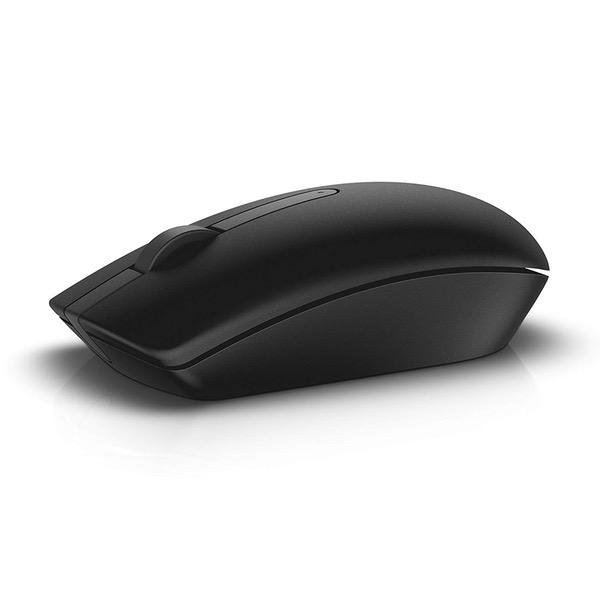
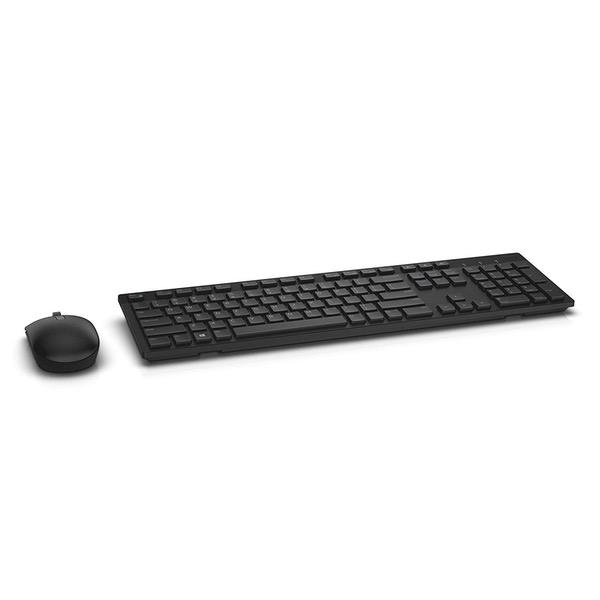
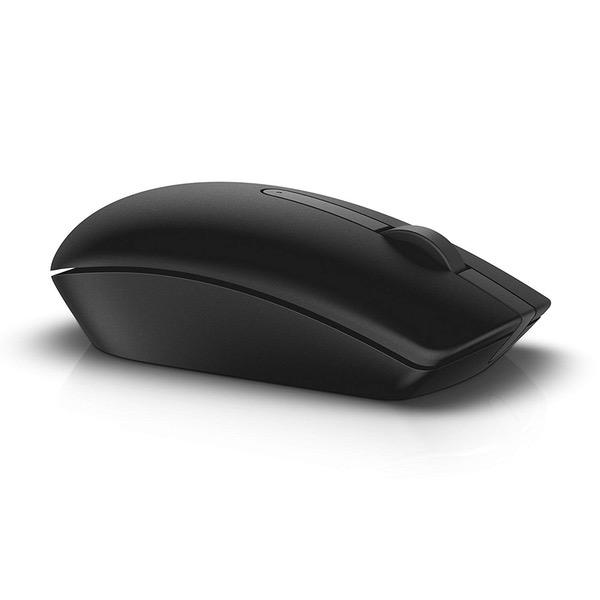
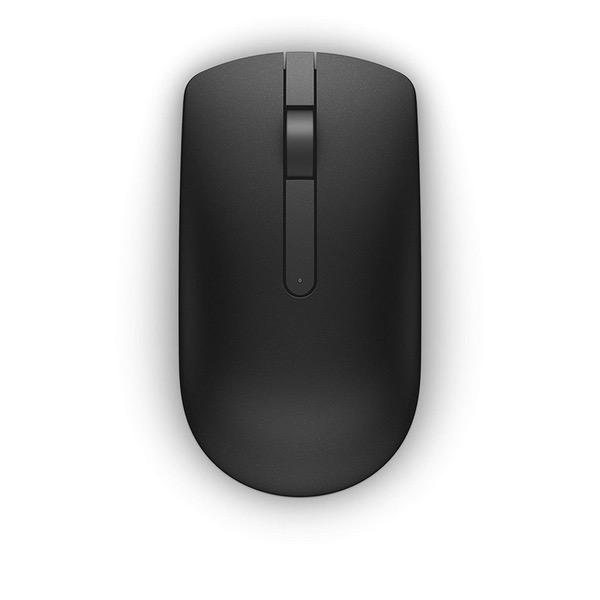
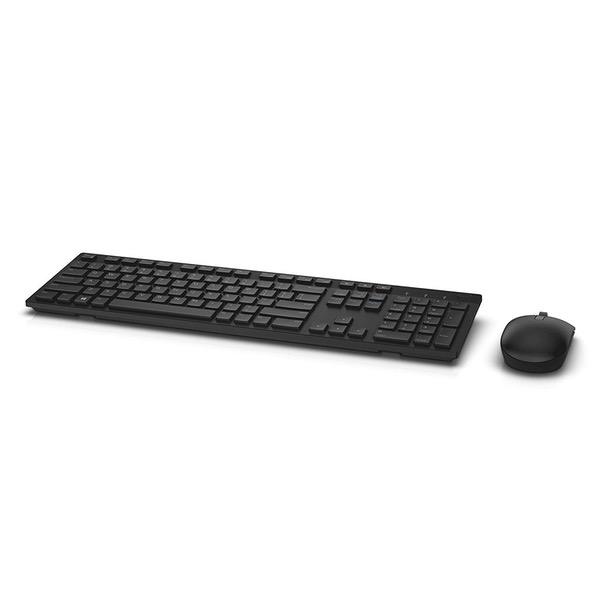
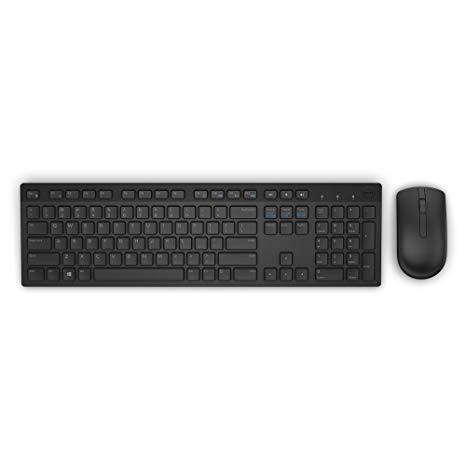
Dell KM636 Wireless Keyboard & Mouse Combo (5WH32)
Write a review
$3200 $8200

Dell KM636 Wireless Keyboard & Mouse Combo (5WH32)

Write a review
B01FM8H22S
+
Add to wish list
Target is a general merchandise retailer with stores in all 50 states and the District...

City: US, New York

Delivery
Pickup at your own expense
Tomorrow from 09:00 to 20:00, Store location
Free
Payment options
Apple Pay Google Pay Mastercard Visa
Cash, bank card, credit/installment payments, cashless payment for legal entities
Warranty and returns
Exchange/return of products of proper quality within 14 days Official manufacturer's warranty: 12 months
Description
This fits your .
Make sure this fits by entering your model number. Contemporary Design Wireless convenience and performance Designed for: Inspiron 11 3179, 32XX, 3459, 3668; latitude 12 5289, 13 7350, 7370, E5270, E5460, E5470, E5570, E7270, E7470; optiplex 30XX, 3240, 50XX, 5250, 70XX, 7440; precision mobile workstation 3510, 55XX, 7510, 7710; precision tower 3420, 3620, 5810; vostro 15 35XX, 32XX, 3668; dell wyse 30XX, 50XX, 7010. Long, efficient battery life Elevated and spacious chiclet keys, multimedia keys, plus optical tracking for precise mouse movement Refer user guide below
Reviews
3.3
Reviews: 20
5 stars
35%
4 stars
15%
3 stars
15%
2 stars
15%
1 star
20%
Manvendra Singh
5
I work in IT industry for over ten years so I’ve used many keyboards mouse. I’ve used expensive mechanical keyboards, overpriced apple magic keyboard and other. But this $20 keyboard and mouse combination is awesome. See pictures for more. Pros Super easy to setup. One usb adaptor for both keyboard and mouse. 3 batteries in included with product. Elegant look. Protruding keys. Cons Material is good but can be better. But keep in mind you’re paying very little for both keyboard and mouse. So its worth. See pictures and decide yourself
Andrew K.
5
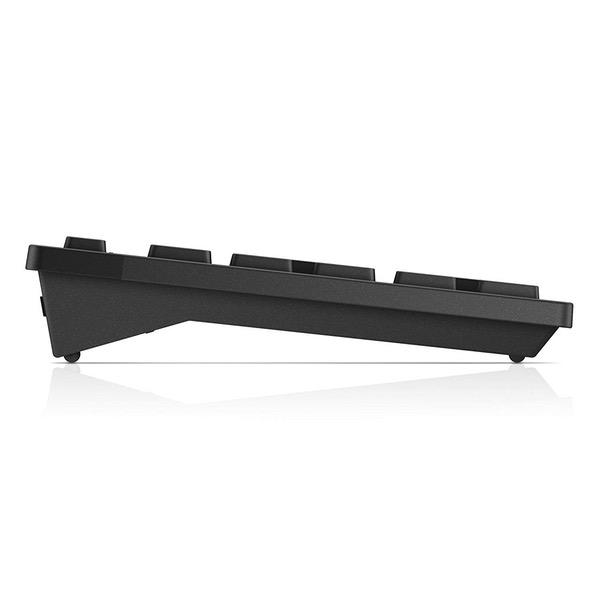
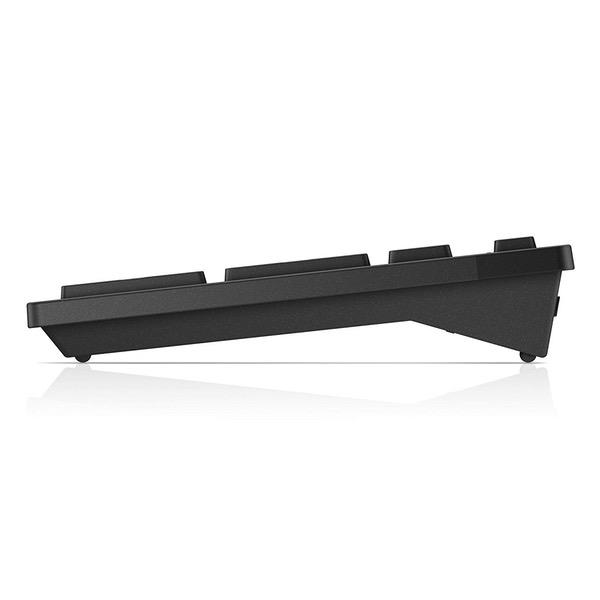
I am in love with this keyboard and mouse. The key feedback is great. The chiclet design makes it super simple to type quietly and efficiently. Less error when typing compared to standard keys. The only small issue is that the keyboard is not incline adjustable. Its a fixed incline although the angle is very low and I havent experienced any pain using it like that even after being used to a flat keyboard. The mouse is also great. Fits in the palm nicely and is shaped so you dont get hand cramps always trying to hold on to the mouse. Ive found that with other big name combos similar to this. Also its very, very difficult to find a keyboard that is wireless and has the inidicator lights for number lock, caps lock and scroll lock. What gives?! But this keyboard has that and its great. Keyboard is smart to turn off the indicator lights to preserve battery when they keyboard is on but a key hasnt been pressed in a while. Wakes up quickly as soon as you start typing; no lag or missed entries. Mouse is the same, goes to sleep when not using and comes back on when you move it. Fantastic feature that both of the devices turn off when the computer source shuts down. Dont be worried if the indicator lights dont turn on when you turn on the keyboard; they keyboard has to be connected to a computer that is on for them to illuminate. Great feature in case you leave the keyboard switched on and shove it a backpack or bag. I love this keyboard combo and would definitely buy it again. Nicely done Dell and Logitech. Bought 2! One for work and one for home! Update 4/23/16 I continue to love this keyboard endlessly! I am going to buy a third one for my father for Fathers Day! Please never discontinue this keyboard combo Dell!
IJK
5
Update: I actually went to the dell website and downloaded the drivers for this keyboard and now it works perfectly! I think the issues was the software that I needed to install. I had read the reviews on this prior to buying but I didnt think it could be that bad. But it is really the worse wireless keyboard I have had. It takes forever for it to type letters and then misses them if you type to quickly. I wanted it because I found that dell keyboard letters do not wear off as like the Logitech. Looks like I will be trying out another keyboard considering how lg it took me to type this review to correct all the mistakes....
Hezekiah
5
[Orignal Review 10-31-18] I only bought this for the keyboard to replace the Magnesium alloy keyboard (Microsoft surface keyboard). I set it up on 10-29-18. It was weird at first. it wouldn’t connect to the computer through the dongle. So I saw the quick start guide says to connect the mouse first, so I did that, and then the keyboard started working. but not all the keys... I restarted the keyboard and the computer and that allowed me to get numlock working. It was almost like the keys had never been pressed before (no quality control?). I also had some delays when I would press a key. Anyway, midway through the day, I wasnt having any more issues. its working fine now. Comparison to the Microsoft Surface keyboard. 1. I love that this is not just Bluetooth. The Surface is Bluetooth only and would have quite the delay after not using it for a few minutes even though I had power savings features turned on for my Bluetooth dongle. 2. The keys are more clicky - harder to press, I cant be as light on the strokes, but its more satisfying, you really know that youve hit the key before you bottom out. These keys are also curved just a bit. Logitechs solar keyboard are more curved and I like that, but Microsofts were totally flat, and that meant I would hit the edge of a key more often and not know it, and not register the key. 3. The keys are slightly smaller, have a little more gap, and have less wobble. One thing I never knew I cared about until I had the MS keyboard, was that the arrow keys on that one were evenly spaced, and when I reached my hand to them I wouldn’t know if I was hitting the arrows or the num pad because there was no gap between the arrows and the num pad. It looked nice and symmetrical, but I much prefer the extra gap this, and most keyboard have. There’s a small gap between the arrow keys themselves and a large gap between the arrow key and a non-arrow key. 4. The materials. The MS keyboard is simply better. I have the surface pro 3, and I’m a huge fan of the magnesium alloy Microsoft has. I think all electronics should use it. It feels good to touch, it’s sturdy and light. This Dell keyboard has a darker look to it, which is nice, but it doesn’t feel as nice, and there is some bend. Also, the aluminum is only on the top and sides, under side is plastic, which I wouldn’t car about if it didn’t bed, but it does, but the bend is not noticeable when typing, so I’m okay with it over all. The keys on the MS are also nicer. It feels more matte, and the keys on the Dell are more like the plastic from Logitech, it’s more of a sticky plastic, rather than a smooth matte. 5. Overall, I think this Dell is nicer. Fi you are coming from Logitech, especially he Logitech solar and want something a little more premium, this is a good choice. If you like a really light stroke on the keys, then the MS might be worth it. But I had a lot of missing letters on that one, and then the left Ctrl stopped working. I dated this review, so I will update it alter with more dates so I (and others) know how long it’s been.
Gustavo
5
LOVE this keyboard. Very solid, premium feel. I like DELLs keyboards imprinted fonts, which are modern but discreet. The typing feel is perfect and the keyboard elevation is comfortable. I really like the compact layout, but still having the full numerical keypad. You still get a PgUp, PgDown, Home, End, Insert, Delete and Print Screen keys, along with the full F1-F12 keys, but in a very nice compact layout, that is still spacious enough for a very comfortable typing experience. The main keys spacing is pretty stardard, the space saving only take place in the F1-F12 keys, which are half size and more compactly spaced. Same going for the Insert, Delete, PrtScreen, PgUp, PgDown, Home and End keys, which remain conveniently located. I use the PgUp and PgDown keys a LOT, and this layout still pleases me. Also notice that the keyboard has no logo imprinting at the top, so it will look great with the rest of you computer regardless whether it is from DELL. Also note that this is a LOGITECH manufactured product. It comes with the Logitech Unifying USB wireless connector and works with the Logitech drivers. If you have other Logitech products (ie, a mouse - I use the MX Master), then you only need one driver and one single connector for both devices. The mouse is cheap. Not on the same level as the keyboard. You can use it but I suggest getting something else. At this price the mouse is for free in this bundle. The only complaint is that there isnt a caps lock key on the keyboard, and the driver does not signal on the screen when you switch the caps lock on and off. The only way to know if your caps lock is on or off is by typing something on the screen (which might not help if you are typing a password...). I think this is a driver issue as my older logitech keyboards would signal on the display when I switched the Caps Lock On or Off.
Ju-Miao Cheng
5
Wow... for what it is and the price, Im seriously impressed. I havent been a fan of previous Dell wireless keyboard and mice, but this is nice, when considering the the price. Im usually a Logitech person. Especially for wireless devices from other major manufacturers, which I get connectivity issues when they go to sleep and have to click or something to wake them up. The combo basically looks like the wired combo that came with a dell optiplex system that was purchased previously for work. The keyboard has good bounce, low noise, and good key travel. The mouse has good weight (not light), good for medium size hands, and scroll wheel has rubber so its got grip. If it has the side buttons for going back and forward at this price, my mind wouldve been blown away~ Overall, Im very satifisied and highly recommended.
RickS
5
Can not say enough about this keyboard Looking at my purchase history from Amazon I averaged a keyboard every 15 months up until I bought this one the DELL KM117m, and looking at the order so I could get the model I didnt see what I was sure was there when I was shopping for keyboards, about it being able to withstand spills, I did not see it anywhere. But I can verify that is indeed exactly what this board can do. Spill and keep using it NO, after a Rinse and Dry (covered later) YES, Absolutely Yesterday in my effort to hold the door for my wife my oxygen hose grabbed my fresh cup of coffee knocking it over onto my keyboard and then all went to the floor and of course the keyboard landed right side up so the remainder of the cup could puddle on it. This would have made the 3rd time I would have replaced it but instead I am using it to write this review after my routine keyboards Rinse and Dry. The title describes what I actually do but here is the procedure I use to restore it back to use. UTMOST IMPORTENT: Pull those batteries as quick as possible. Once opened and looking at it, below will make sense. 1. Once the batteries are out towel dry it to work on it. 2. Lay the board face down on the towel and locate and remove the 14 screws from the back. 3. A little tricky but remove the base a plastic snap together you pop up one spot then work your finger around it to release the whole thing and set it aside. 4. This will reveal a rubbery sheet Ill call KSP key spring pad that can go only one way because of where the cut out is placed for the harness connection, screw hole cutouts, and little holes where it is attached to keep it from moving around with little peg sort of things that will go through the KSP that are mostly around the perimeter, a couple near the middle. That is all that will separate from the keypad what is there now is three sheets of plastic that are fastened together and separated very little. 5. If the spill was just water go to 6, if not you need to rinse everything you just took apart. Im guessing some would say use deionized water but I used tap and havent had a problem. Rinse it well enough to be sure all the sticky is gone. 6. Now drying. I start with pat drying all surfaces with a clean towel. Be more concerned about how dry it is and not how long it is taking just be sure it is dry 100%, use a hair dryer for all of it on high heat and fan. I start with the base on top and underneath and between the 3 sheets of plastic this is the heart of the board any water here and shes fried, so be sure everything is dry here. Next the KSP can be pressed between your hands covered by the towel then the hair dryer, and this usually doesnt take very long. Last is the keyboard I body slam it into the towel held by my other hand a few times on both sides to get as much out as possible and then the hair dryer and you should see the keys flutter up and down when blown from the backside when held in a normal position. This should cover the drying out then reassemble the board with the base on a table make sure the plastic sheet are dry then place the KSP over it the cut out upper tight and with your finger push the KSP locater holes down over the little pegs sticking up and then very carefully set the keyboard over the top of the base and once in place you can pinch together and you will hear a plastic click and do that all the way around, youll know when it is all the way home free. Nothing left but to replace all 14 of the screws in the back of the board and install the batteries and proceed with where you where when you tried to drowned your keyboard. The good: Batteries last a long time with low battery light Range is good Rubber pads on the bottom work really, really good that look like they cant come off Spills/immersion is only a problem not a death sentence It can take a lickin and keep ticking The Bad None I have found yet
You may be interested
  • Bestsellers
  • Recently Viewed
 
Fast and high quality delivery

Our company makes delivery all over the country

Quality assurance and service

We offer only those goods, in which quality we are sure

Returns within 30 days

You have 30 days to test your purchase