












Storm the Penguin
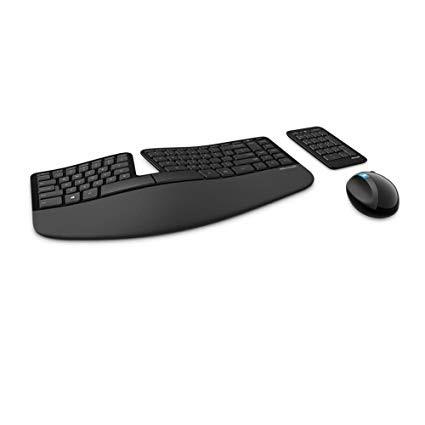
Lets get the little things out of the way: The keyboard is wireless. Requires 2 AAA batteries The Numpad is wireless and separate from the keyboard. It requires a CR2430 3V Lithium Coin Battery (commonly called a "watch battery") The Mouse is wireless and requires 2 AA batteries All batteries are included with the keyboard The mouse, keyboard and numpad require a single USB connection. The USB connector is a small dongle which can be stored within the mouses battery compartment - its about the size of a quarter. The cover for the battery on the mouse and main keyboard, as well as the riser for the keyboard are all magnetic, snapping into place but having no mechanical hinge. It is possible for the battery covers to fall off if you accidentally drop the hardware, but the batteries are held pretty securely inside and will stay in place even without the covers. It is also really fun to snap the covers and risers into place and I did it far too many times. The battery cover on the 10-key numpad is held on with a screw and friction brackets (it is not fun to play with). Layout - ------------------------------------------------------- I am a long time user of the Microsoft Natural line, ever since their first "split" keyboard back in 1994. For those who have used the Natural line before, the layout of the Sculpt is similar to the "Elite" line. The main body of the keyboard maintains the Delete/Home/End/PgUp/PgDown/Insert keys, but they are in a double-row column. The arrow keys are in the traditional "pyramid" shape, but due to space restrictions, the left arrow shares space with the right CTRL key under the right Shift. The separate numpad contains the full-sized 10-key layout as well as the NumLock, an app button (defaulting to opening the calculator), a clear button (for use in calculator), and a Backspace key. As a keyboard "purist," the 6 key layout is annoying in a full-sized keyboard. I find myself smacking the wrong keys because they arent where I think they should be. I havent had to look at my keyboard layout in years, and having to hunt and peck for the Page Up key is annoying. However its a small thing and something Im sure Id probably get used to over time. If youre a gamer trying to use a Natural Keyboard (bless you), the arrow keys wont seem quite as bad as other squashed six-key layouts because they decided to keep the pyramid configuration. Keys and Buttons - ------------------------------------------------------- The Sculpt keyboard is a "chiclet" style keyboard, similar to those found on laptops. The keyboard is a rubber dome, membrane-style keyboard utilizing scissor switches. For those unfamiliar with scissor switches, these style switches tend to require less distance to activate and give a more solid, "bouncy" feel. If you had previously used a Microsoft Natural Keyboard 4000 and did not like the "squishy" feeling of the key action, these may feel better to you. They obviously do not feel anything like Cherry switches, but I do like the action much better than my old 4000 (I favor MX Blues on my mechanicals). For those who are office users, the keys are pretty silent - honestly the only key that I hear is the space bar. All of the normal row keys are silent. Like most USB keyboards, the Sculpt only recognizes around four to five simultaneous keypresses. Also, the media buttons are not gone, but instead are set as an Alt-Function of the Function keys. In order to access alt-functions, there is a small physical switch on the upper-right corner of the keyboard. You have to set this switch to Function or Alt-Function (White or Blue). So, if you wanted to play your video, refresh a webpage, and then pause your video, the order of operations would be thus: Set the Function keys to Alt (Blue), Press F1 (Play), Set Function keys to normal (White), hit F5 (refresh), set Function keys to Alt (Blue), Hit F1. Its a little odd. The other option is simply to no longer use the secondary functions. The annoying implementation makes you think Microsoft wants to phase these out anyway. The Sculpt mouse is a side-rest mouse, the hand placement basically the same as the old Microsoft Natural Wireless Laser Mouse 6000 . If youve never used a side rest mouse before, it will probably take a little time to get used to. The "pulling" motion feels a little odd at first. The mouse uses Microsofts Blue Track technology, meaning that the mouse will track properly even on transparent surfaces. I have a sheet of 1/10 inch plexiglass on top of my maple desk - my older optical laser mice jump all over place when on this surface, however Blue Track mice work just fine. The only dislike I have with the mouse is with the tertiary buttons. The primary, right-click, and wheel mouse are fine and no different from most mice. The wheel does retain both the scrolling up/down as well as the rarely used side-to-side functionality. However instead of the standard back and forward buttons, Microsoft has opted for a back and Windows key button. This wouldnt really bother me as you can easily remap the Windows key to something more useful, but the placement of the keys feels very unnatural. Perhaps its due to hand size, but when I rest my hand on the mouse, my thumb does not rest on the buttons naturally. When compared to the old Natural Laser Mouse 6000, the keys on the Sculpt mouse are set forward, similar to where the second front button is located on the 6000. Also instead of having two buttons at the same level, the Windows key is on top and the back key is set in the thumb recurve area. The back button also takes a fair amount of force to actuate, making the use of the button a wholly annoying process. It should be noted that when I initially installed the keyboard and mouse, Windows 7 had no problem loading drivers, but it defaulted to a generic mouse and keyboard. In order to completely configure all of the media buttons as well as the secondary mouse buttons, you will need to download the Microsoft Mouse and Keyboard Center from the Microsoft.com product page. Flow and Comfort (aka: Learning your Home Row) - ------------------------------------------------------- The ergonomics line is all about comfort and natural motion. In this, I have always liked the feel of the natural line. While not as truly ergonomic like the Kinesis or kits like the ErgoDox, it is probably the best easily obtained keyboard line in this regard. For those who have never used a split keyboard, it forces you into using the standard Home Row style typing method. If you do a lot of typing through the day, you can expect to feel comfortable with the key layout within a week. If you only type sparingly, itll probably take upwards of a month. With frequent use, the side rest style mouse will probably feel normal within a few days. The wrist rest on the keyboard is nice - it is not super plush like a couch, but a simple thin layer of foam covered in a "pleather" type covering over plastic. For users of the old Natural 4000, the rest feels the same, maybe a tiny bit stiffer. The keyboard comes with a riser which tilts the keyboard forward - you may or may not use the riser depending on your chair-to-desk height. The mouse has an O-ring shape on the underside where the mouse makes contact with the surface. Most mice usually only have three or four small contact points and I was afraid that this might make the mouse feel sluggish, but it glides nicely. A bit of Teflon tape probably wouldnt hurt though. Conclusion - ------------------------------------------------------- Microsofts Sculpt Ergonomic Desktop is a good successor to the Natural line but in general a bit of a mixed bag. While I wish Microsoft had opted to go with mechanical switches for their keys, the scissor switch keys a great improvement over the squishy plain rubber dome keys of the old Natural 4000 keyboard. While making the 10-key numpad separate from the main body of the keyboard probably won a few fans, the six-key layout seems like a needless change. Moving from a wired to wireless is nice when keeping desk clutter down, but a total of five batteries in order to power keyboard and mouse seems excessive. Unfortunately due to the odd placement of the tertiary buttons, I am not a fan of the newly revamped Sculpt mouse. Given that the old 6000 is no longer available, the new Sculpt isnt a bad mouse for ergonomic use, but using the back button became something that I had to think about and change hand position to use, rather than being a natural feeling motion. As an end note - Why is everything GLOSSY? Everything, except the keys themselves and the side buttons on the mouse, are a piano black gloss. The mouse looked nasty after simply removing it from the box and putting it on my desk. The keyboard is a jumbled mess of random fingerprints and smudges. All-in-all, if it were possible to pick up only the keyboard, Id be a fan of that rather than the keyboard + mouse combo. However as the keyboard does not seem to be a standalone product at this time, its coin-flip in my opinion on whether to pick up this bundle or not. If you have an old 4000 keyboard that you need to replace, I would say get this product simply because the key action is so much nicer. Keep your old 6000 mouse though. For the folks who have never had a split keyboard, the Sculpt is a great representative of the line and a good keyboard by itself, and despite my complaining, the mouse is not bad, just a little annoying for a nitpicker like myself. **Small edit - Many folks have pointed out that Microsoft is planning on releasing the keyboard as a standalone product later on, however it was not available as of this review.