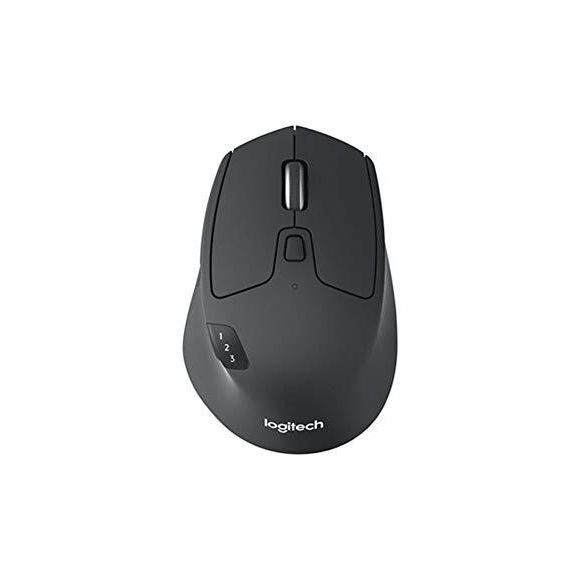







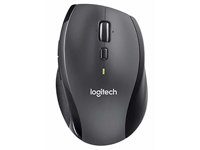

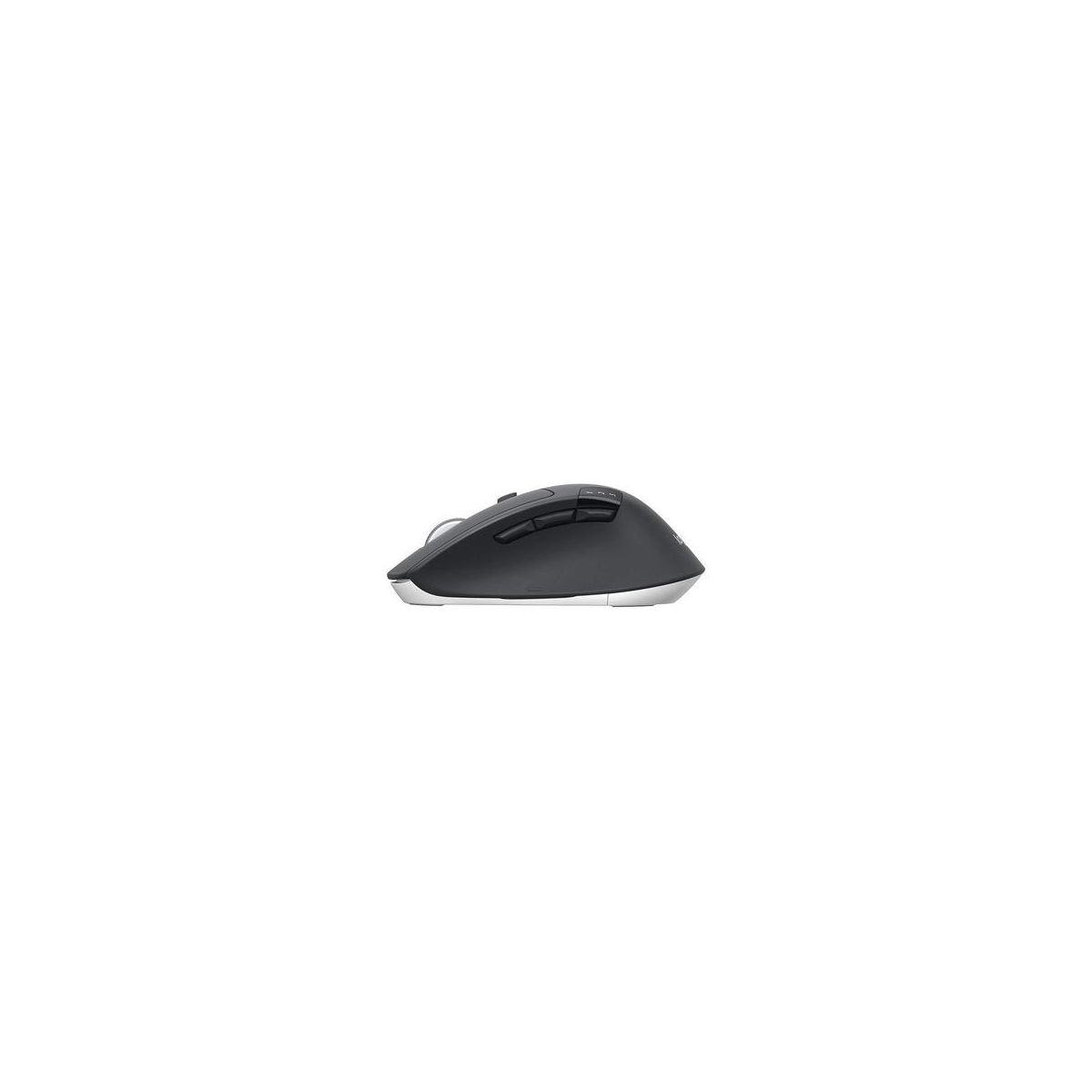
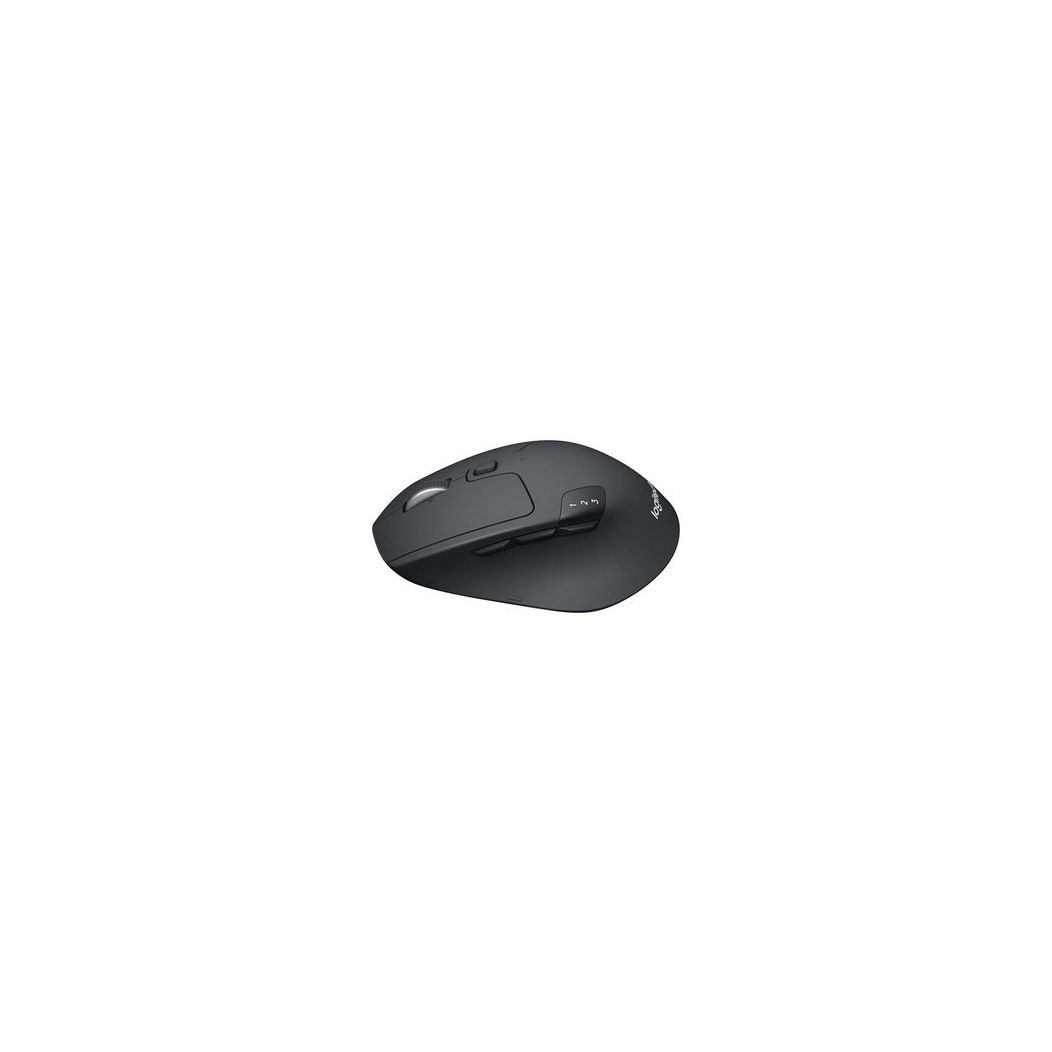
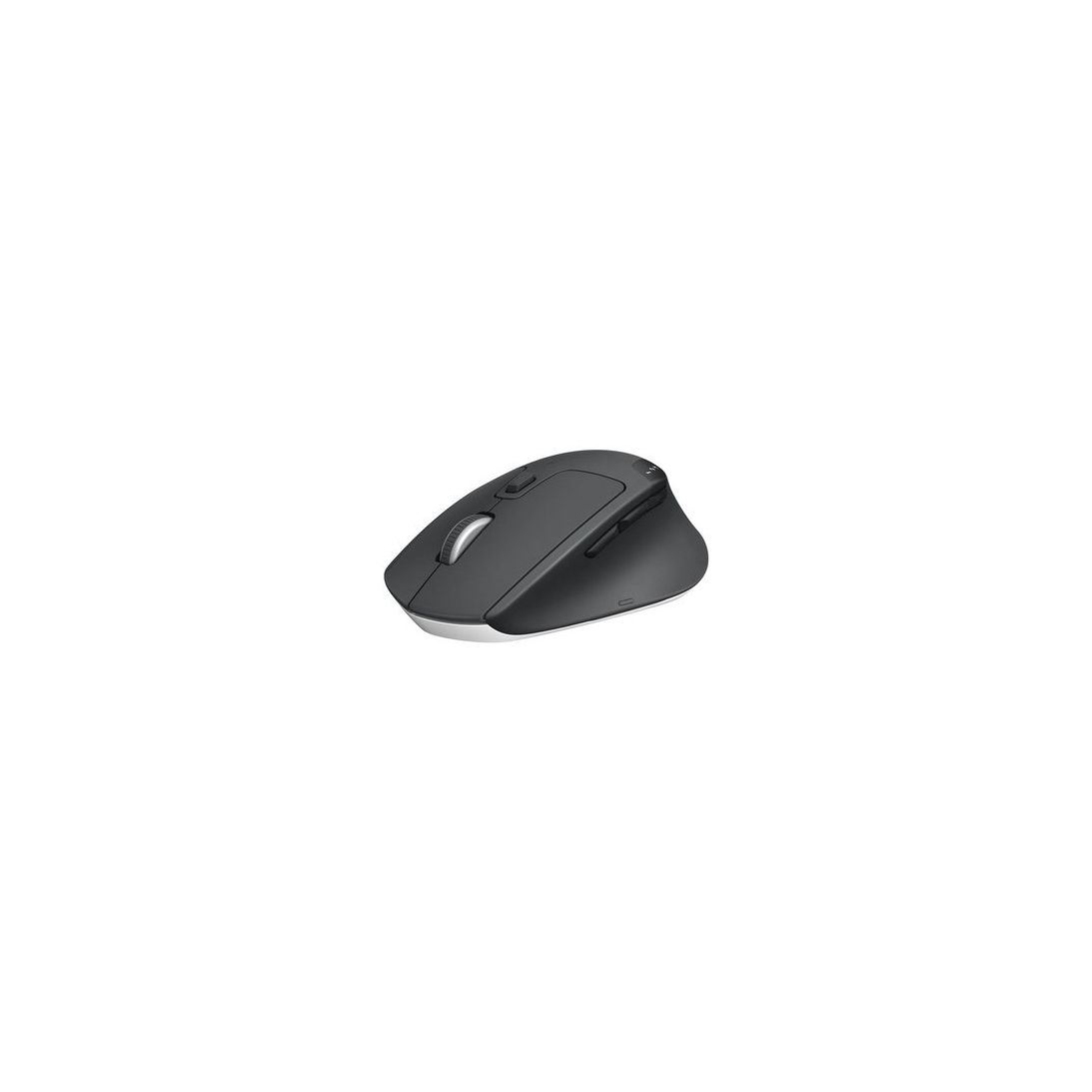
Logitech M720 Triathalon Multi-Device Wireless Mouse – Easily Move Text, Images and Files Between 3 Windows and Apple Mac Computers Paired with Bluetooth or USB, Hyper-Fast Scrolling, Black
Write a review
$3500 $5000

Logitech M720 Triathalon Multi-Device Wireless Mouse – Easily Move Text, Images and Files Between 3 Windows and Apple Mac Computers Paired with Bluetooth or USB, Hyper-Fast Scrolling, Black

Write a review
B01LF37K80
+
Add to wish list
Target is a general merchandise retailer with stores in all 50 states and the District...

City: US, New York

Delivery
Pickup at your own expense
Tomorrow from 09:00 to 20:00, Store location
Free
Payment options
Apple Pay Google Pay Mastercard Visa
Cash, bank card, credit/installment payments, cashless payment for legal entities
Warranty and returns
Exchange/return of products of proper quality within 14 days Official manufacturer's warranty: 12 months
Description
This fits your .
Make sure this fits by entering your model number. CROSS-COMPUTER CONTROL - Game-changing capacity to navigate seamlessly on three computers, and copy-paste text, images, and files from one to the other using Logitech FLOW DUAL CONNECTIVITY - Use with up to three Windows or Mac computers and laptops via included Unifying receiver or Bluetooth Smart wireless technology MARATHON ENDURANCE - A true athlete, the M720 is designed to endure, with buttons built to withstand up to 10 million clicks HYPER-FAST SCROLLING - Scroll through long documents or web pages faster and easier. Or press the wheel and shift to click-to-click mode for precise navigation LONG BATTERY LIFE- The Logitech M720 just keeps going, with 2 years of power on a single AA battery
Reviews
4
Reviews: 20
5 stars
45%
4 stars
30%
3 stars
10%
2 stars
5%
1 star
10%
Lexter
5
Best mouse Ive yet used. This one feels the best in my hand – admittedly a very subjective judgment. (Ive used multiple Logitech mice: M705; Anywhere MX; Touch Mouse T630. Multiple Microsoft Mice: Sculpt Comfort Mouse; Wireless Mobile 4000; Sculpt Touch Bluetooth Mouse. And more.) It is very similar in size and shape, to the M705; but the M720 feels better, to me. The mechanism for switching between devices works very well, with no lag time. Having the switching button on top (rather than having to turn the mouse over, as with the T630), makes *much* more sense. Switching is so convenient, I now want one of these on both of my desks -- thereby eliminating having to deal with a different mouse for each device. The build quality is typical Logitech (i.e., high quality). Two year battery life! Highly recommended!
Tet
5
I received this today so this is a preliminary review. When I received it, the case was scratched so I was afraid the mouse might be scratched too. Thank God, it was not. Cons: The mouse is 4.6 ounces so it is not as light as smaller alternatives. However, I like this size and it fits my hand well. Logitech says the battery lasts for 2 years but I cannot comment this at this point. As other reviewers mentioned, the mouse goes to sleep mode pretty quickly to preserve the battery. So when you scroll after a while, it does not respond. You have to move the mouse first, then scroll. Some people may not like this. It looks somewhat cheap. When I received it, I had to clean it. You can sort of tell from the picture that it does not look like a new (not used) product. I cleaned it and it looks decent. The mouse has lots of pros. 1. Using Logitech option, you can map the function of the keys. This mouse has 6 customizable keys (plus gesture functions). Thumb button can be set as mission control, then also add four gestures such as zoom in, desk top, cmd+T, and cmd+W. Yes, you can use cmd shortcut too. 2. Works great with Mac. I am using Unifying receiver for my keyboard so I linked this mouse too. 3. The scroll can be also used for many ways. In addition to scrolling, you can click on it (which you can assign any function you want). Also, you can move the scroll left and right (for which you can also assign the function). I love it so far.
Leonard
5
I purchased this mouse with the Logitech k480 keyboard as I frequently travel and use multiple devices (Surface Pro, Note 5, Dell Laptop) and did not want to carry 3 mice and keyboards around. So far this has held up well however I recommend pairing this with one of the hard travel cases available to protect the wheel and various buttons as they can be squished with ease inside a computer bag. Ive been pleased with battery life, daily usage has not required a battery switch yet however it is nice knowing all that needs to be done is pop out the AA battery and put in a fresh one. It is also nice to be able to store the wireless dongle with the mouse (I used the Bluetooth connection) incase you need to connect to a 4th device or one that does not support Bluetooth connectivity. Bluetooth setup was easy and intuitive, you do not need to use Logitechs app to make the mouse work however adding their app does add quit a few nice features including customizing what different buttons do. Bottom line a solid value and durable workhorse.
Dustin Palmer
5
Have had this mouse for about 3 weeks now. I love it. Im finally able to live the dream. I have three different devices on my desk at work and Im able to seamlessly switch between all of them. One is an Ubuntu Linux AIO, the other a Windows 10 tablet, and the last one a Macbook Air. It took nothing to get the Win 10 tablet and Macbook up and running through Bluetooth. I havent used the Unifying Software to be able to copy and paste between two devices, but it really isnt the feature I was after. I dont need to move files around too much thanks to Cloud sharing, but Im very happy the feature is there. I purchased the K380 as well so now I can type and move the cursor on three devices without having to switch to separate input devices for each machine. This has made my life so much easier. Nice work Logitech. For those curious, you need to install an application called Solaar on Ubuntu before the Unifying receiver will work. It requires adding a different repository as it isnt part of the default Ubuntu ones. A quick Google search will explain more in detail, but feel free to ask. As for the mouse itself, it fits nicely in my hand, finger tip hold feels solid and the middle mouse wheel spins comfortably. It took a bit to get used to the thumb buttons as Id always push the one to switch devices when I wanted to go back, however, my hand is used to it now. Logitech added a nice feature where the first click on the device switcher highlights your current device instead of switching it. That may be frustrating to some, but it has saved me from changing devices by accident. Good design all around. Im very happy with my purchase.
Aaron Johnson
5
I LOVE this mouse! I use it with 2 computers regularly with bluetooth and a 3rd off and on. I really appreciate the ability to have multiple computers set up to use the same mouse! It does not drain the battery much at all, I dont think I have changed the batteries yet in the 5 months I have had it and I use this mouse daily all day long. It feels good in my hand, nice size. Some of these wireless mice are way too small, but this one is nice! It is very responsive and has adjustable sensitivity levels. I LOVE the scroll, I can spin that wheel and pages fly by. Awesome! I like the "hidden" button for the task switching. *swoon* The radio dongle can be stored inside the mouse (perfect for the occasional 3rd or more computer use) Good for work and gaming. I like that I can turn it off when I am transporting it in my bag. Already my plan is to get another of these when it dies however at 5 months in and it is still going strong I dont expect to do that at any time soon. With my mouse track record, is a quite the accomplishment and a big plus! (often by now I start noticing "issues" with other mice.) So 5 stars for sure! Why did it take so long for me to find a mouse like this?!?
Darik James
5
Updated ... Absolutely LOVE the Logitech M535 / M720 mouse as there is no other like it. Its USBless, meaning you do not have to take up a USB port using an USB bluetooth adapter for the mouse, simply connects to your Bluetooth enabled (built in, newer) desktop, laptop and tablet. Have the M535 connected to my (newer) devices, Laptop Dell Inspiron Ryzen 5 cpu and Fire 10 tablet, no hitches / clitches whatsoever. As with all Logitech mouses, they are quite hi-tech, completely customizable, configurable and quite sturdy, inspite of other reviews found herein. By the way, I loved the M535 so much, I even purchased the M720 … so, this review is for both: Now as for all the neanderthals that dont know much about Logitechs hi-tech mouses, or in using it, here are some tips: Step 1: go to Logitechs website, located on the package that comes with your mouse - Register it - see ... logitech download m535 / m720 (fill in com and /) for software needed for your mouse - see ... logitech support m535 / m720 (fill in com and /) for PDF file Step 2: download, PDF file for your mouse Step 3: Install Logitechs software that enables customization / configuration of ALL the functions on the mouse Logitechs mouse IS NOT flimsy at all!!! In fact, built quite sturdy. The scroll wheel MAY appear flimsy but is built that way as not only does it scroll UP and DOWN, but moves sideways (left and right) as well (to go to Previous / Forward web page, tabs); and can be PRESSED DOWN for auto scrolling - that is why the scroll wheel may appear flimsy, its built like that for multi usages. Again, Register your Logitech and download and READ the PDF, then install the software that customizes your mouse. Then these neanderthals that complain will finally be in the 21st century! (Im ASSuMIng the neanderthal can Read & Discern properly!) TABLET: mouse operates as a tablet, not as Microsoft system mouse, meaning there is NO Right Click, NO Double Clicking. You simply use the mouse as if youre using your finger on tablet, doing Single Click, Long Press, etc; hence a Tablet Mouse in use. When using Logitech mouse on multi devices, you do have to Re-Pair it each time as you switch devices (see BELOW for "Restoring"), takes less than 2 min. (Remove M535 from device (Laptop / Tablet); Activate Bluetooth on mouse; Select: Find New Bluetooth on device (Laptop / Tablet)) LOGITECH M535 / M720 MOUSE - Restoring - Reboot (Microsoft) System (may / may not be necessary) - Remove Battery from mouse for up to 10 min - In Microsoft Windows, go into SETTINGS then SYSTEM, then DEVICE mode - Activate BLUETOOTH detection mode - Turn ON mouse then insert battery (in that order) - Check / Recheck BLUETOOTH mode for device detection Youre good to go!!! UPDATE: Occasionally, I do have problems with Re-Pairing (see above solution that works), dont know why LOGITECH Techs cant include a Micro 16gb SD to remember devices as they obviously have done with models: * Logitech MX Anywhere * Logitech MX Ergo If you dont mind shelling out $50 to $70 for a SUPERB multi functional, Dual Connectivity mouse (for both Microsoft AND Apple) USBless & USB adapter, then go for it as it is the Rolls Royce of Hi-Tech Multi-Configurable Customizable mouses ever found to be had; then by all means ENJOY & relish in your satisfaction!!! But, pay a measly $22 to $35 for a wonderful mouse here, M535 / M720, then you need to become a bit of a Nerd in trouble shooting. Ive already given you some herein; so I’ll show you how to become a Nerd in Training (rookie) to tremendously enjoy these awesome mouses! Now heres another good one I found from a neanderthal of Logitech mouses: "Mouse m535 intermittently stops working..." ... answer is very simply, WAKE IT UP!!! (Left / Right Click; Move it around; etc. then wait; or see TRICKS TIPS TECHNIQUES below) You see, Logitech tries to EXTEND the battery life immensely (up to 10 months), thus Sleep States are incurred. Dont like em, go into Settings (mouse), ahhh that is back up top. I think less than 10 min in using a mouse is a GOOD setting! If it takes you GREATER than 10 min in using a mouse, it definitely needs to go to Sleep Mode. (LOL) Also, see below, Wake Up method. TRICKS TIPS & TECHNIQUES (Note: Copy & Paste this into your EVERNOTE app to take full advantage) These Tricks Tips & Techniques are well worth over $80 in Diagnostic fees you’d pay a Technician to solve your problems, a lot of it comes from Common Sense that neanderthals just don’t seem to have these days, but we had decades ago. UPDATE: any and all your Bluetooth / devices and display drivers through your manufacturers website (be it Dell, HP, et al). Once updated, do a full Restart. A lot of PC users refuse in doing this measure, hence their complaints / negative reviews for a lack of discipline, education that they display so arrogantly, and contribute their measly 2 cents of which it’s not worth. BLUETOOTH DISCOVERABLE: If you’re losing connection / bluetooth disappearing from Devices, chances are Bluetooth is not Discoverable. To Name / Rename your PC, click Settings, System, About to name your PC. Next, Click START, SETTINGS then DEVICES, then BLUETOOTH & OTHER DEVICES … below ‘Add Bluetooth … ‘ and below ‘Bluetooth ON / OFF’ switch should show ‘Now Discoverable as (name of your pc)’ - scroll to bottom and Check Box ‘Download Over Metered Connections’ If the Name of your PC is not showing, Right Click START and select ‘Windows PowerShell (Admin)’ and at the Command Prompt type SFC /SCANNOW … or … DISM /ONLINE /CLEANUP-IMAGE /RestoreHealth then a Full System Restart / Hard Boot, then recheck above once again to see if your Bluetooth is now Discoverable (Settings, Devices, Bluetooth & Other Devices). See below, ‘Windows Device Manager’ for turning OFF Bluetooth Power Management WINDOWS DEVICE MANAGER: Also, you’ll need to go into Windows SETTINGS, type DEVICE MANAGER, click NETWORK ADAPTERS, then left click your Wifi Wireless Adapter then Right Click selecting PROPERTIES, select POWER MANAGEMENT and Uncheck ‘Allow Computer to Turn Off to Save Power’ While you’re at it, click BLUETOOTH device PROPERTIES then POWER MANAGEMENT and Uncheck ‘Allow Computer to Turn Off This Device WAKE UP: your sleeping mouse, simply (using your left hand) move Track Pad on laptop SLOWLY while with your right hand you move the Logitech mouse SLOWLY as well; seems to work for me most all the time. Vertical down to 5 (I went from 22 (standard) down to 5 to get it to work) SLEEP / HIBERNATE MODE: If that fails, (leaving Bluetooth ON your mouse) put your laptop in SLEEP / HIBERNATE (turns pc off) mode for a minute (get that coffee; take a leak) to a few minutes, then start up laptop, this awakens Bluetooth on your laptop; works for me. This’ll prove it is Windows Bluetooth issue, NOT with Logitech!!! PHANTOM / ERRATIC MOUSE – needs to be modified by: Windows – System – Devices – Bluetooth – then Mouse and Add’l Mouse Settings: Select: Buttons and adjust Double Click Speed (slower or faster – to see what your system can take) Select: Wheel and adjust Vertical down to 5 (I went from 22 (standard) down to 5 to get it to work) WINDOWS ISSUES: Inspite of all the negative hype that can be found with Logitech M535, M720, etc., the fault DOES NOT lay within Logitech but with Windows 10 recent updates; you can research it yourself, "windows 10 bluetooth issues" or "windows 10 bluetooth connection loss" - having work arounds like Ive provided (dinosaur techs from the 80’s) here and before, that neanderthals / diaper brats of the iPads / 2020 just can’t figure out, and in knowing these Work Arounds helps immensely in having this awesome mouse(s) working for you. Enjoy!!! ALTERING BROWSER’S ACCELERATION Lowering your Browsers Performance: really helps tremendously!!! (from BSOD) With Chrome: * Click 3 Vertical dots / Custom and Control * Settings * Advance then System * UNCHECK Use Hardware Acceleration ... With FIREFOX ... * Click 3 vertical dots / Open Menu * Options * Performance * then UNCHECK everything; you may leave 1 (to 2) processes, if you like - (I chose 1) If you’re using a different browser, the procedure is nearly the same / identical. Believe me (coming from a dinosaur Windows Troubleshooter), you will not notice any drag in acceleration nor in performance in eliminating ‘Hardware Acceleration / Performance,’ but a tremendous hike in stability! LOGITECH has recently (end of March 2019) released an update for ‘Logitech Options’ - by clicking MORE, you can Check Box the type of problem you’re having. It’s awfully nice of Logitech to go to extremes to include that in their update (Logitech Options), however, I do not see the problem lies within Logitech, but within Windows, and my above Troubleshooting methods really point to Windows inadequacies / faults, but truly work (my methods above) like a fine tuned charm on overdrive for Logitech’s wonderful mouses (that I have, M535 (for Fire HD 10 tablet), M720 (for Dell, HP Laptops & Desktop))! Scroll Wheel Not Working / being disabled, then do the following to fix Chrome & Firefox, et al browsers ... LOGITECH OPTIONS app: click ‘Point & Scroll’ and Disable Smooth Scrolling I appreciate it that you ADD these Troubleshooting methods to your EVERNOTE app, and most of all, build upon them as I’ve provided herein. Enjoy!!! (and stop being a numb nut neanderthals)
ksuwildkat
5
I recently got an iMac and had originally hoped to use it in Target Monitor Mode but I missed the part where Apple stopped supporting that in 2014. No big deal, I have a monitor for my Win10/Hacintosh but I wanted to use just one mouse and Keyboard for both. I use a KVM at work so I am very used to using multiple systems and multiple screens. So I started looking fo solutions and asking around. Mouse: First purchase was a Logitech Triathlon. Besides being a really nice mouse, it can connect to up to three computers. There is a side switch that lets you switch between the computers. I have the USB dongle plugged into the Win10/Hacintosh because it lacks Bluetooth. It connected to the iMac using bluetooth automatically, no action by me. Switching is easy and as long as you are logged in, you can do a lot with just the mouse. As an example, I often use the Win10 system as a YouTube player. I dont need to type anything. Keyboard: For the Keyboard I got a UGreen USB Sharing Switch. This is a simple "one in, two out" switch. I ran my Red Dragon K580 in and sent it out using the supplied USB cables. The box is about the size of a pack of playing cars, flat black with a tiny, not very bright (in a good way) blue LED that moves to indicate one of the two cables. Its simple and it just works. Very nice. So now I have both systems sharing a Keyboard and Mouse and each driving their own monitor. Its a setup I like a lot and while it would have been nice to send everything to the iMac screen, I would lose the ability to have YouTube running in one system completely independent of the other like I can now. Total cost was $55 - $33 for the mouse and $14 for the switch. You would be hard pressed to find a good KVM for $55 and you would still need a mouse. Additionally by splitting the functions like I did I can switch just the mouse or just the keyboard if I choose. Downside of course is that switching is two presses not one but I can live with it. If you need/want to share a keyboard and mouse between two systems, I recommend this setup.
Michael McDermott
5
This works great with a 2017 MacBook Pro on High Sierra. I dont usually write these but since I just got the new Mac and found that my old trusty Logitech M510 mouse no longer worked (lots of dropout, totally unreliable though it sometimes worked) with its USB dongle, I was desperate to find a replacement I could trust and that was affordable. Apparently, High Sierra doesnt play nice with the dongle/software combo and its a known problem. This drove me to find a reliable Bluetooth option, and though I read conflicting reviews, this works perfectly for me. Its more precise and consistent than my M510 ever was, and I loved that mouse, even bought a replacement when my first got old and tired. The 720 feels great. I prefer the 510 build just a bit, slightly longer to sit better under my hand and the thumb buttons are better placed, though the 720 feels great too, lovely rubberized texture and probably just takes a little adjustment. Buttons are still well placed (some others are reviewed as having poorly placed thumb buttons), just a little smaller than the 510. Anyhow, this is a good option for MacBook users. Bluetooth connected quickly and easily. Highly recommended.
basementjack
5
This is a great mouse for multi computer use! There is a hidden button on this mouse that can be easy to miss, under the thumb area, if you press in on the case, there is a button there. Note the button you see under the scroll wheel is not an actual button, its enables/disabled clicking on the scroll wheel. Also note on the side you see what looks like 3 buttons in a row, the first 2 are usable/assignable, the 3rd one changes the mouse between your 3 connections. The 1, 2, 3 you see on top is backlit and will light up for a moment to show which Pc youre connected to when you press the button just to the side of that 1,2,3 display Multi PC functionality works great, no complaints there. Install and use the logitech options software to assign all the buttons / gestures. Overall I like this mouse a lot, and this coupled with the K780 keyboard, solved a huge clutter problem on my desk!
You may be interested
  • Bestsellers
  • Recently Viewed
 
Fast and high quality delivery

Our company makes delivery all over the country

Quality assurance and service

We offer only those goods, in which quality we are sure

Returns within 30 days

You have 30 days to test your purchase